Can the Arduino UNO Q Run an LLM? A Local AI Chatbot Without the Cloud
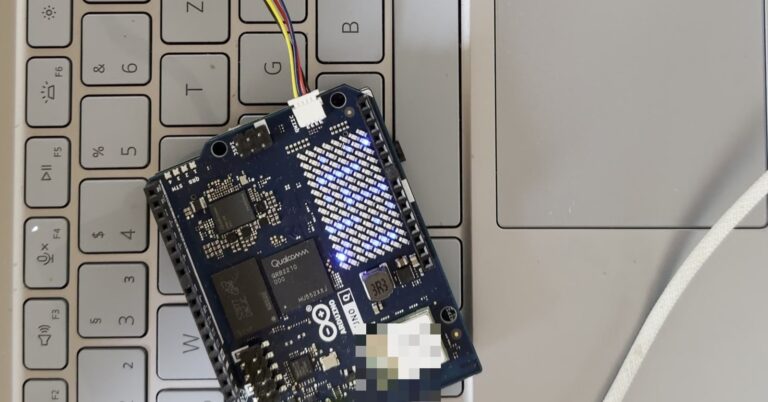
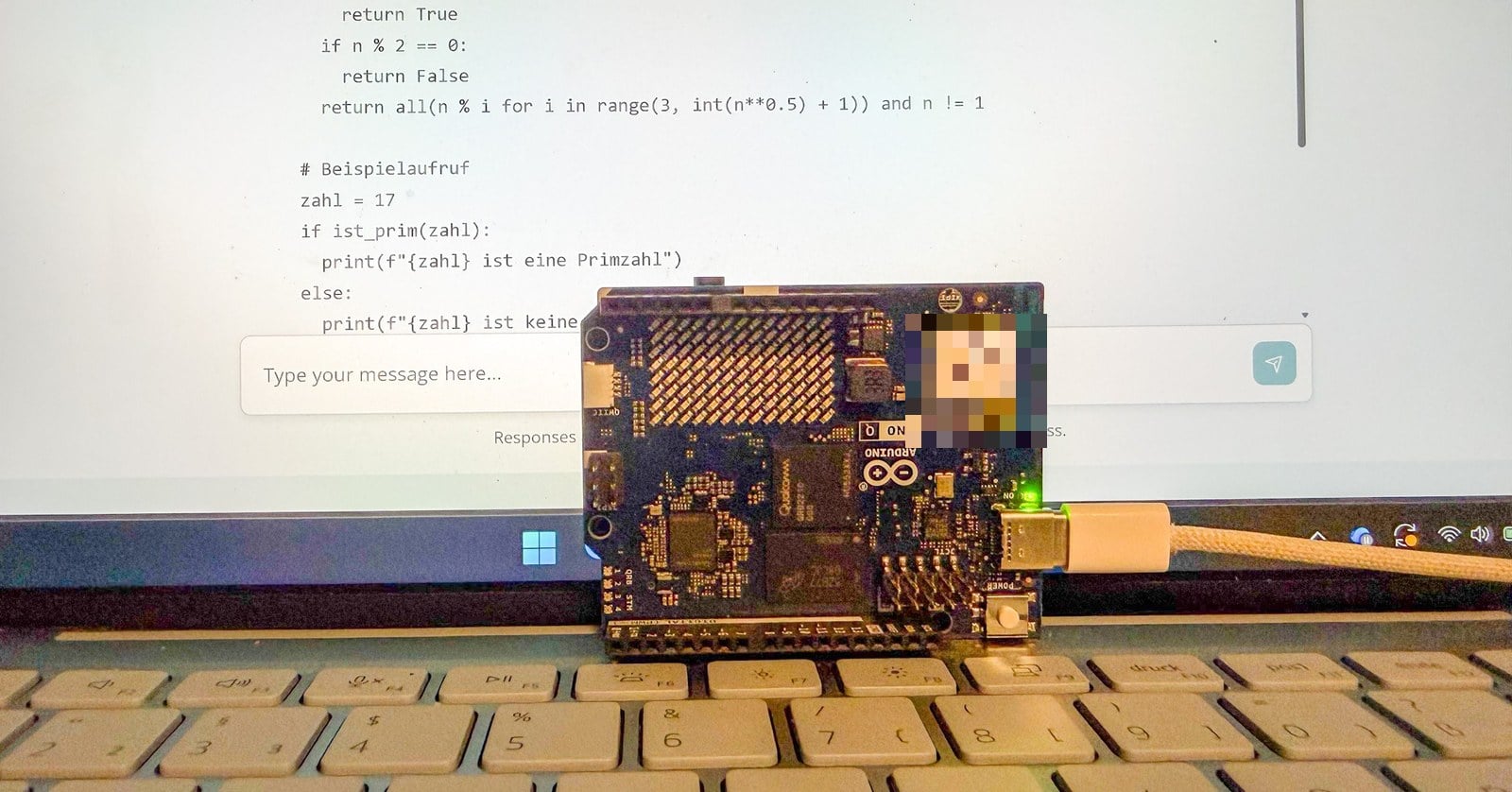
A ChatGPT-style chatbot that does all its thinking on your own hardware: no cloud, no subscription, just the Arduino UNO Q, a board the size of a classic Arduino Uno. Arduino ships a ready-made example for it.
You’ll start the example in App Lab, download a model to the board and chat in your browser.
In short
Arduino’s App Lab example “Edge AI Assistant” runs a small language model right on the UNO Q with no cloud involved, using the CPU rather than an AI accelerator.
- All you need is the board, App Lab and an internet connection for setup, the model download and the chat page. No coding required.
- Gemma 3 1B gave more polished answers in our German-language tests, while the smaller Qwen 3.5 0.8B is faster.
- Answers arrive at about reading speed and the facts are shaky, so it’s best for simple questions and for learning.
- If you want faster answers or bigger models, go with a Raspberry Pi 5 and Ollama.
What you need
- an Arduino UNO Q: the 4 GB version with a 45 W power supply* leaves more headroom for other apps, while the 2 GB version* is fine for getting started. Our Arduino UNO Q setup guide covers the first steps.
- a USB-C cable for power and data
- the board connected to the same Wi-Fi network as your computer, so you can open the chat in your browser
- Arduino App Lab on your computer and a free Arduino account. The screenshots show App Lab 0.10.0, so labels may differ in newer versions.
- Internet access to sign in to App Lab and for the first run, when App Lab downloads the model and its containers, plus for the chat page in your browser
Disclosure: Arduino provided our UNO Q free of charge for testing. This had no influence on our measurements or our verdict.
Which model should you use?
The example consists of two bricks, Arduino’s name for the ready-made building blocks in App Lab: web_ui for the chat interface and llm for the language model. On the UNO Q, the llm brick offers two small models from Hugging Face. Both run on llama.cpp, the same open-source engine behind Ollama on the Raspberry Pi 5.
| Model | Download | Pros and cons |
|---|---|---|
| Gemma 3 1B (Google) | 722 MB | more polished answers in our German-language tests, our pick |
| Qwen 3.5 0.8B (Alibaba) | 507 MB | smaller and faster, rougher answers; the default on the UNO Q |
We went with Gemma 3 1B, and all the numbers in this article are for that model. According to Arduino, App Lab 0.11 and later also let you add your own models from Hugging Face in the same menu, as long as they’re in the GGUF format llama.cpp uses.
Step 1: Copy the “Edge AI Assistant” example
Open App Lab and connect your UNO Q over USB-C or Wi-Fi:
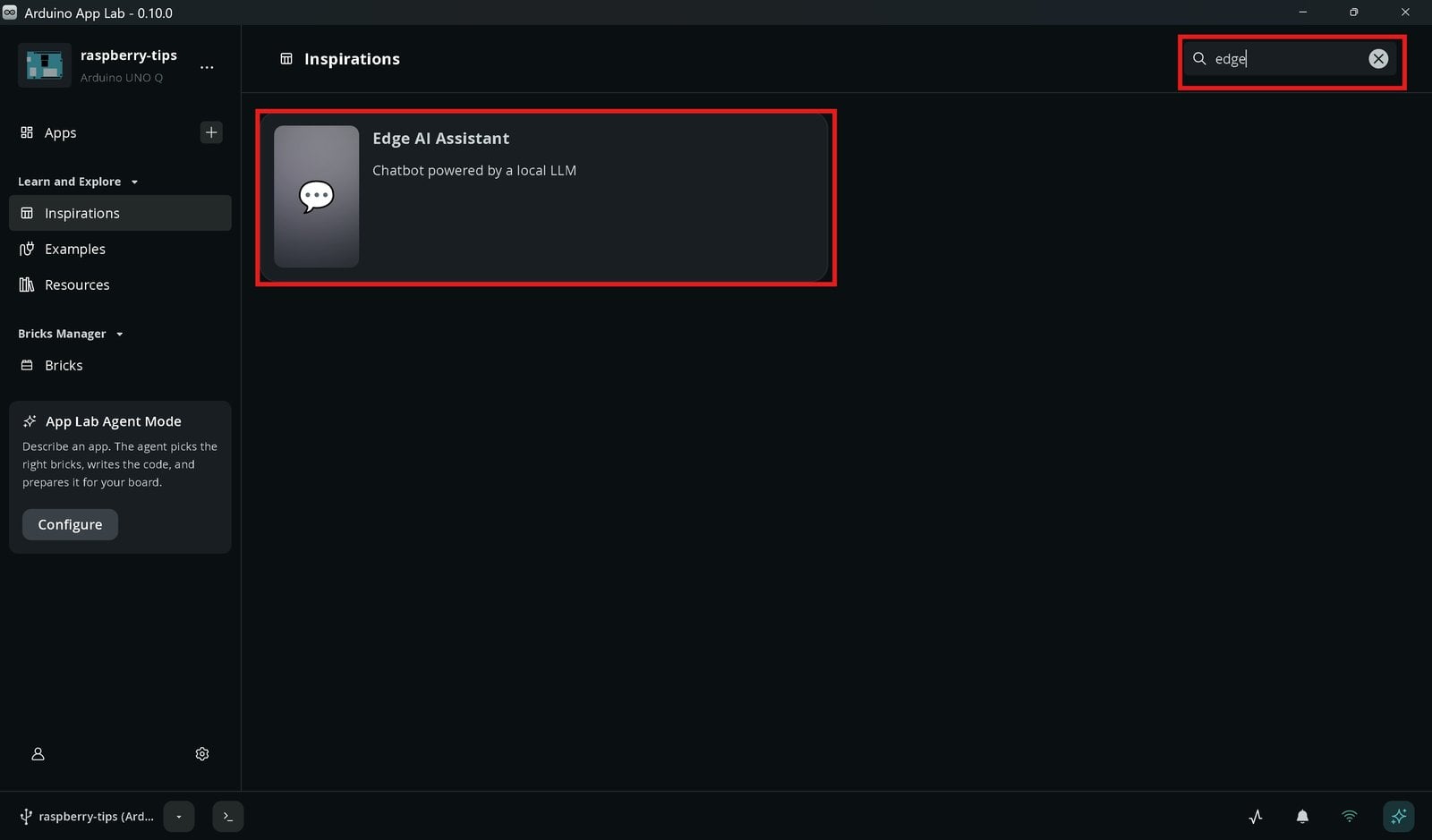
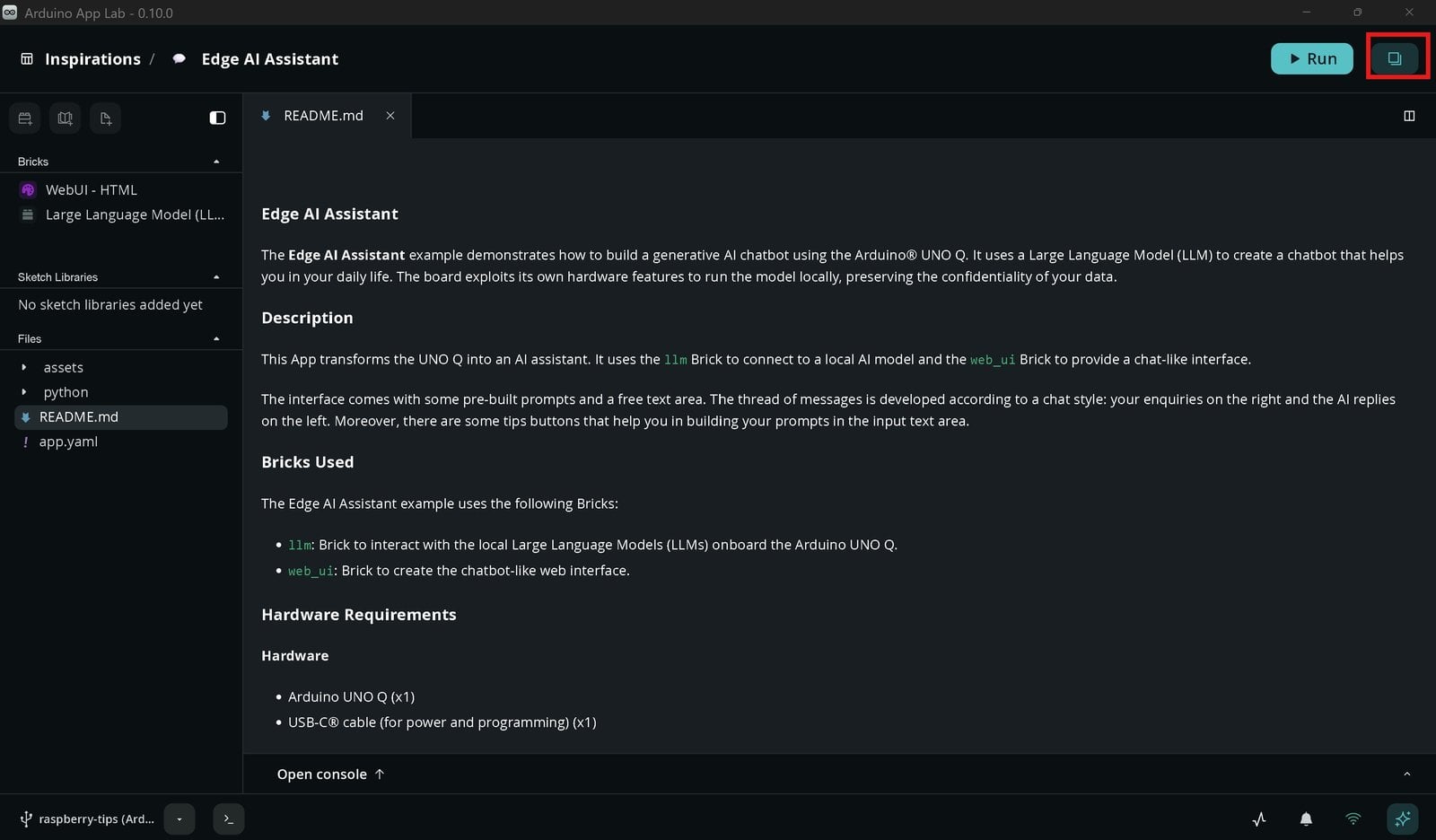
- Under Inspirations, type “edge” into the search box and open the Edge AI Assistant example.
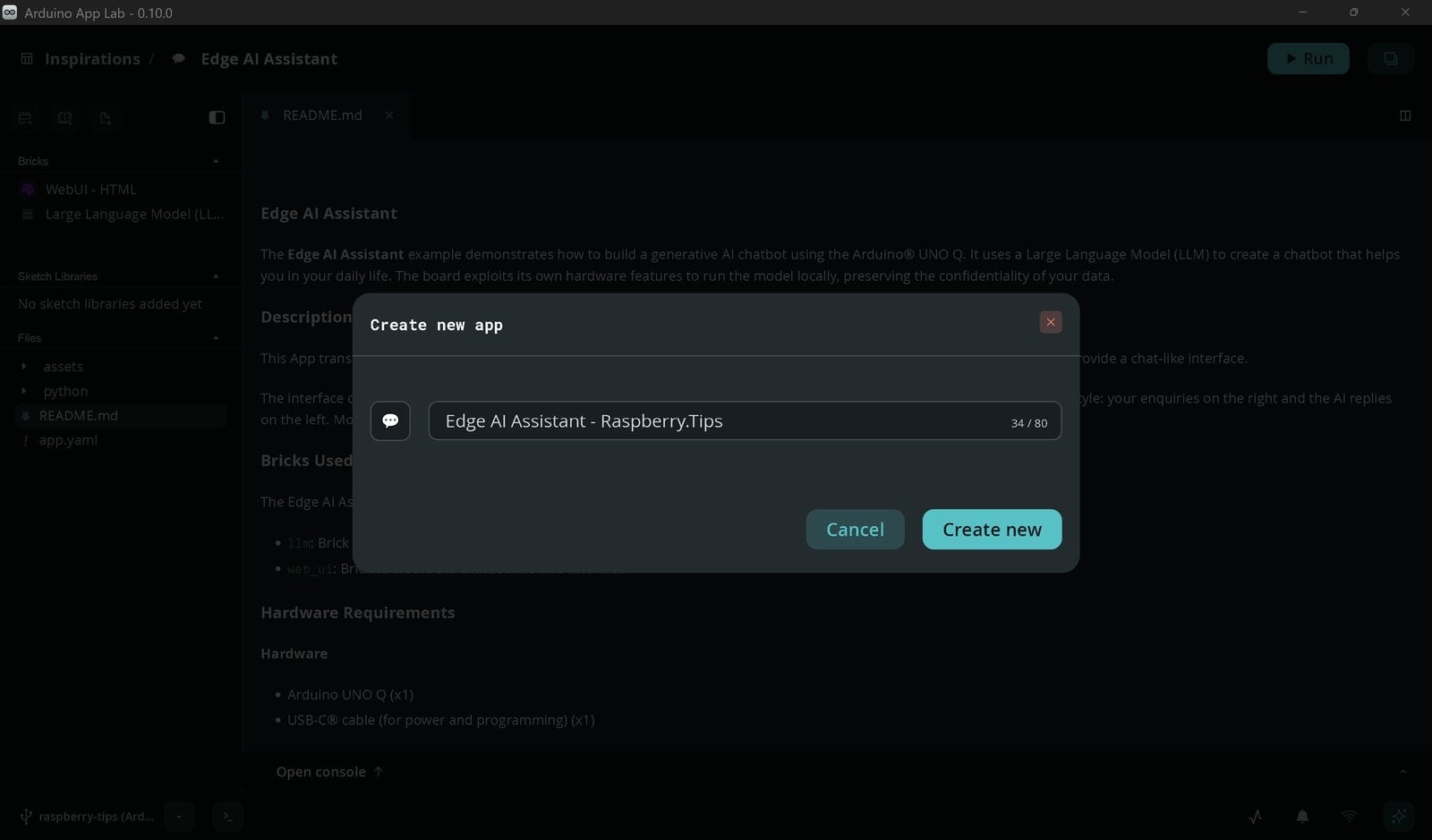
- Built-in examples are read-only, so click Copy and edit app in the top right corner, give your copy a name and confirm with Create new.
Step 2: Download and select the model
You only need to download the model to the board once. To switch from the default Qwen model to Gemma 3 1B, follow the steps below. If you’d rather stick with Qwen, download Qwen 3.5 0.8B in step 3 instead.
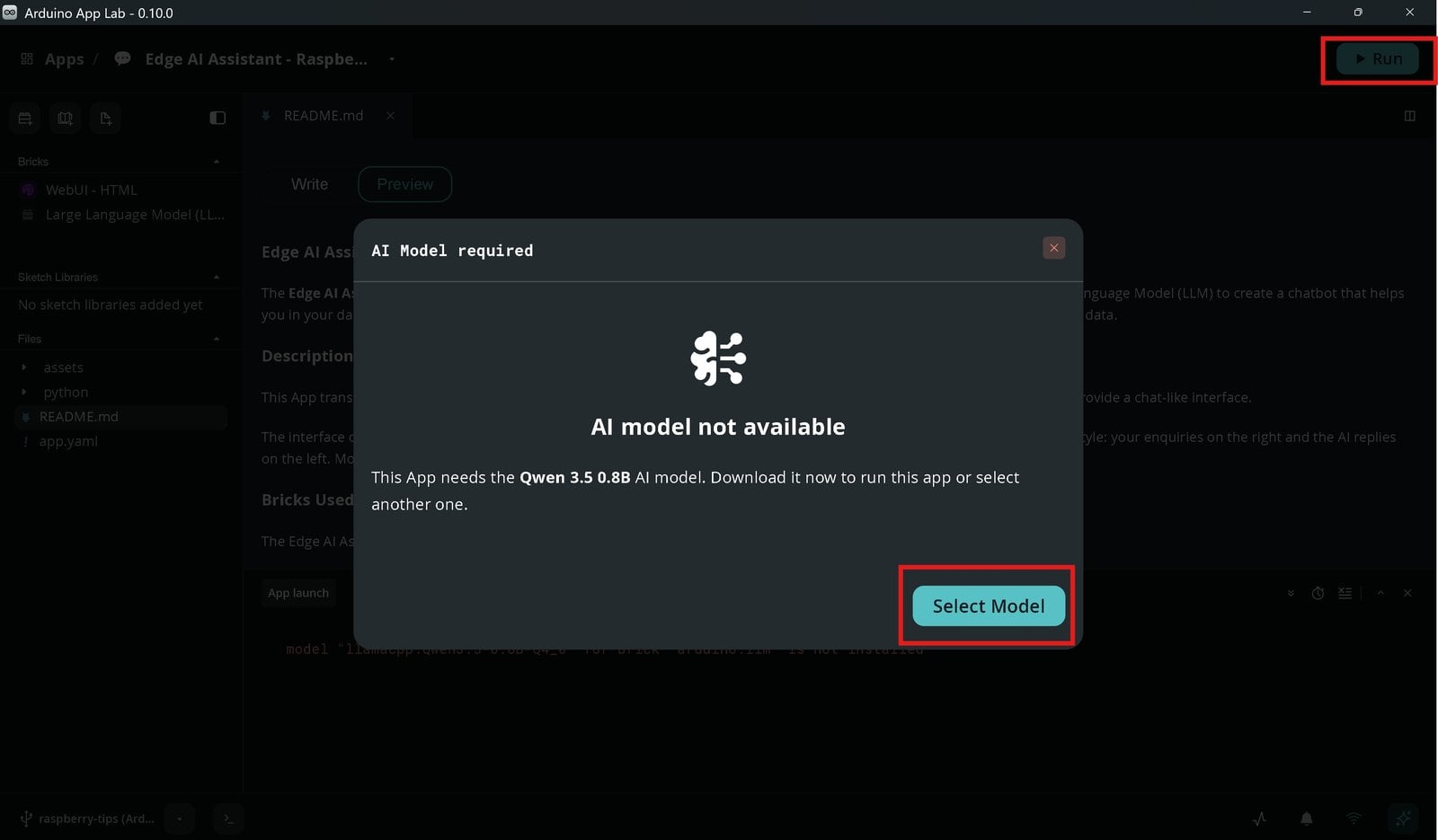
- Click Run in the top right corner. App Lab tells you the model is missing (in 0.10.0: AI model not available).
- Click Select Model. App Lab opens the Large Language Model (LLM) brick on the AI models tab.
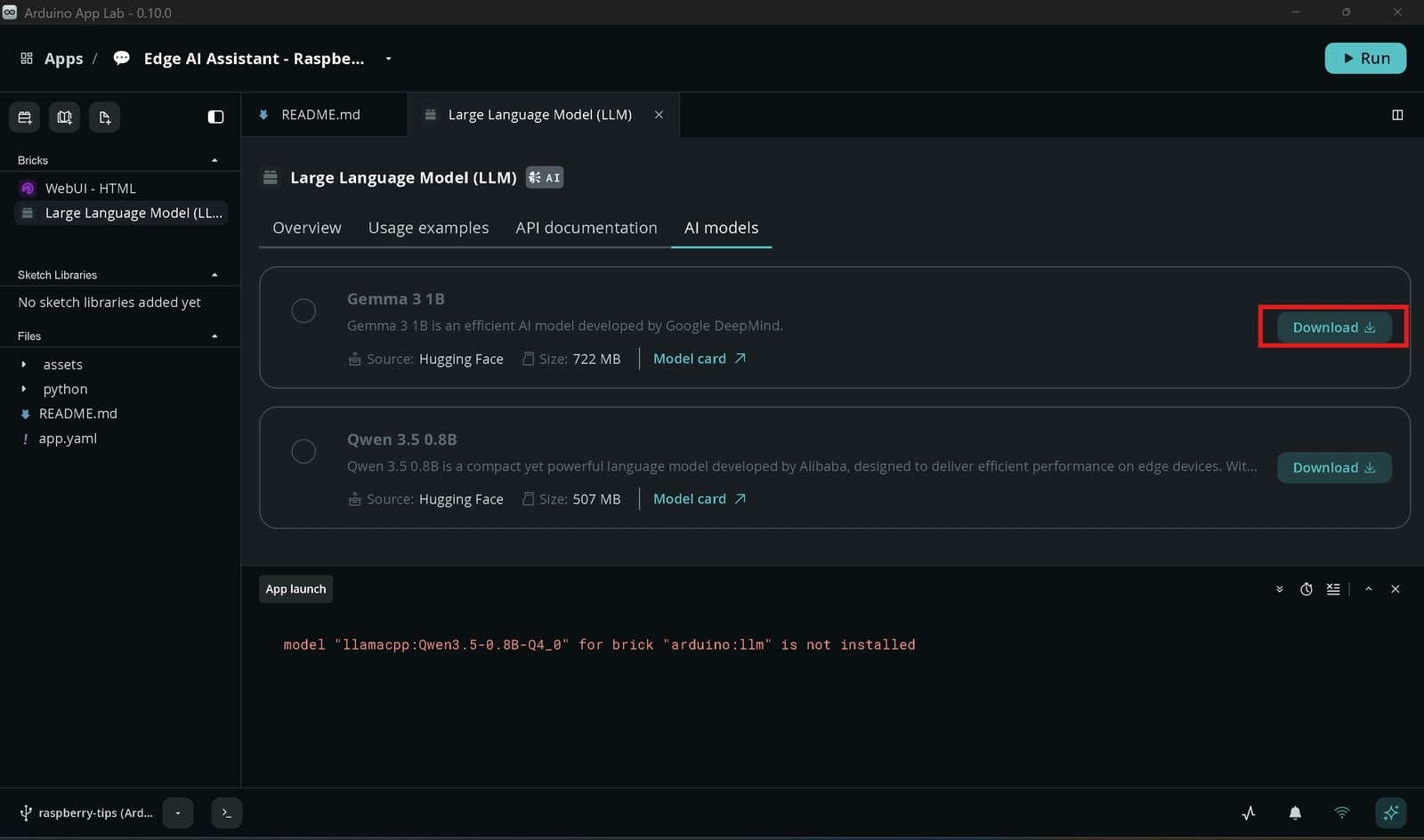
- Click Download next to Gemma 3 1B. Depending on your connection, this takes a few minutes.
- Select Gemma 3 1B as the app’s model (in 0.10.0, using the radio button next to its name) and start the app with Run if it doesn’t start on its own.
If you see “Insufficient disk space”
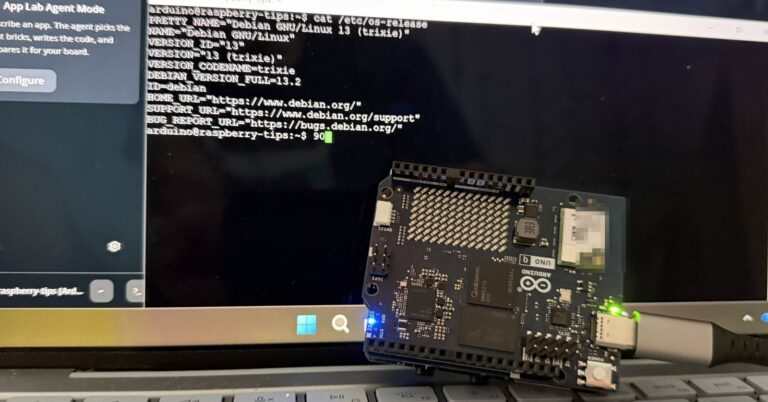
App Lab may complain about disk space during the download, even though the model is under 800 MB. If that happens, open a terminal on the board. You can use the >_ icon next to the board name at the bottom left of App Lab or connect over SSH. Our UNO Q Debian and SSH guide shows both. Then check the free space with df -h. Here’s what ours looked like:
/dev/mmcblk0p68  9.8G  9.3G  776K 100%  /
/dev/mmcblk0p69   18G  705M   17G   5%  /home/arduino
The fourth column shows the free space: the system partition / was full, while the data partition /home/arduino was nearly empty. App Lab runs the Python part of the app and the bricks’ services, such as the model server, in Docker containers. Docker keeps its images in /var/lib/docker, and App Lab stores the models in /var/lib/arduino-app-cli/models. Both sit on the small partition, and the Docker images fill it up.
Quick fix: this command removes stopped containers, every image without a running container, unused networks and the build cache. Your models stay put. App Lab downloads the deleted images, including this app’s, again the next time you start each app.
sudo docker system prune -afCheck the layout first: the output above comes from a board with an older image. A board freshly flashed with the November 2026 image is the other way round: / has 20 GB and /home/arduino only 8 GB. There, / is the large partition, and the move below would put Docker on the smaller one. Only move it if df -h shows a lot more free space on /home/arduino than on /.
Permanent fix: if df -h still shows less than about 1 GB free on / after that, move Docker to the large partition. This only helps if Docker uses the overlay2 storage driver, so check that first:
sudo docker info | grep -i "storage driver"If it says overlayfs instead of overlay2, Docker keeps its images in /var/lib/containerd, and the move below won’t help.
Part 1: Stop Docker and copy its data. The image doesn’t ship the rsync copy tool, so the first line installs it. -a preserves permissions and ownership, -HAX adds the hard links and file attributes Docker needs for its images, and -P shows the progress.
sudo apt update && sudo apt install -y rsync
sudo systemctl stop docker docker.socket
sudo rsync -aHAXP /var/lib/docker/ /home/arduino/docker/
Part 2: Open the config file in the nano editor.
sudo nano /etc/docker/daemon.jsonOn our board, the file only contained the log settings out of the box. Add a single "data-root" line so the whole file looks exactly like this:
{
    "log-driver": "json-file",
    "log-opts": {
        "max-size": "10m",
        "max-file": "2"
    },
    "data-root": "/home/arduino/docker"
}
Watch the commas: you need one after the closing } of log-opts, but none after the new data-root line. If your file already contains other settings, just add the data-root line. If it’s empty, paste in the whole block. Save with Ctrl+O and Enter, then exit with Ctrl+X.
Part 3: Start Docker and check the result.
sudo systemctl start docker
sudo docker info | grep "Docker Root Dir"
If the output shows /home/arduino/docker, the move worked.
Part 4: Free up the old space, but only once docker info in part 3 shows the new path and sudo docker image ls still lists your images:
sudo rm -rf /var/lib/dockerNo need to reboot: just start the download in App Lab again.
Step 3: Chat in your browser
Once the app is running, open the chat in your computer’s browser at http://<board-name>.local:7000, using the board name you picked during setup. Ours is called raspberry-tips, so the address is http://raspberry-tips.local:7000. If your browser can’t find the name, use the IP address instead. Run hostname -I in the board’s terminal to list all its addresses and pick the one that starts the same way as your computer’s address (for example 192.168.178.x). Docker’s own addresses usually end in .1. Then open http://<ip>:7000.
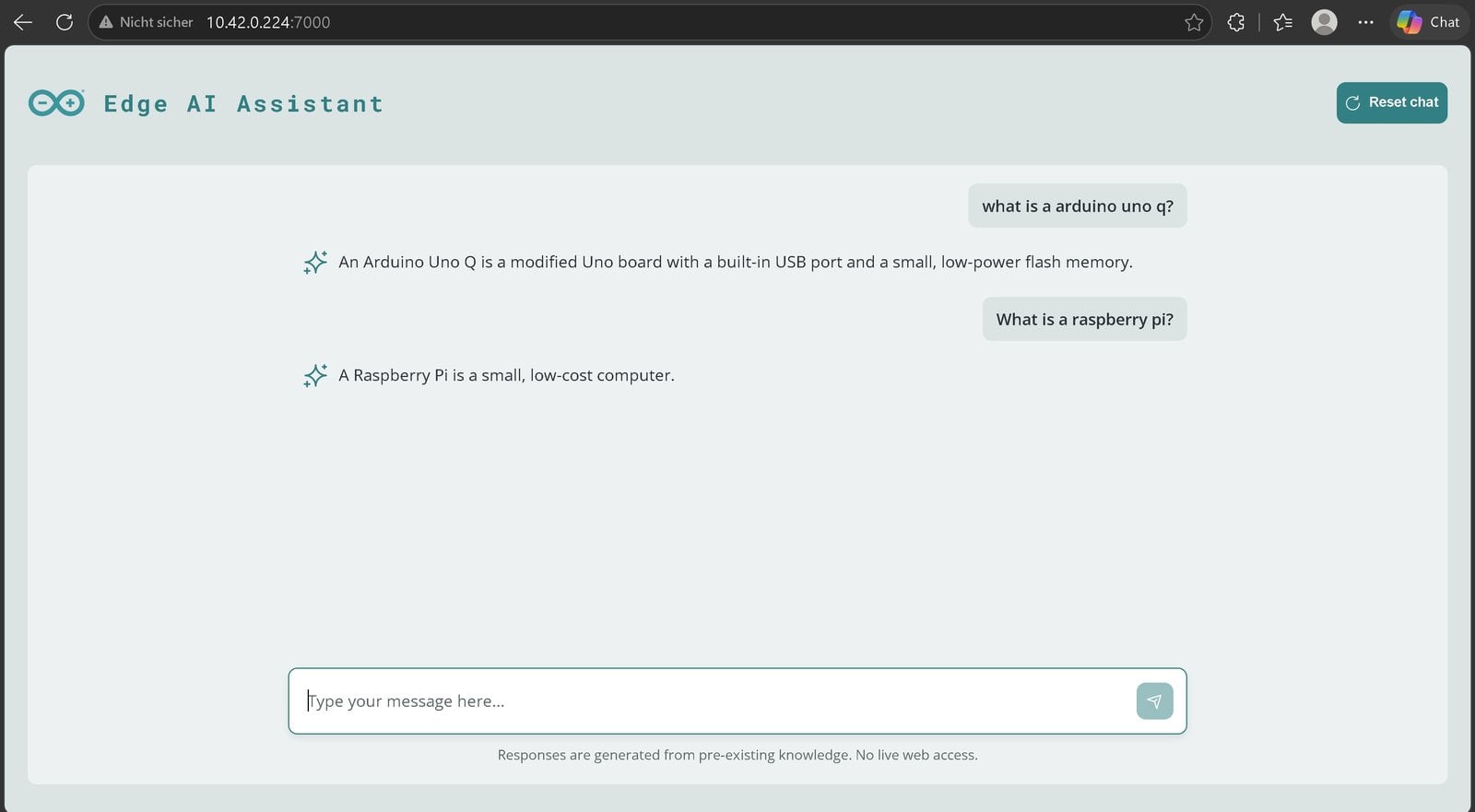
Below the input box, a row of buttons adds ready-made phrases to your prompt, and a few sample questions help you get started. Your messages appear on the right and the answers on the left, word by word as the model generates them. The assistant remembers the last ten messages, so you can ask follow-up questions. Reset chat clears the history.
The model doesn’t need the internet to answer. The chat page, however, loads a small library (marked.js) from the web to display the answers, so your computer still needs a connection. Your questions and the answers never leave your network.
How fast and how good are the answers?
In August 2026, we sent our test prompts straight to the model server on the 4 GB version, bypassing the chat page. A token is a chunk of a word, and the model builds its answers out of them.
| Measurement | Result (Gemma 3 1B) |
|---|---|
| Writing the answer | ~5.5 tokens/s (consistent across runs) |
| Reading the prompt | ~9.7 tokens/s |
| Time to first word | ~2 s (short prompt) |
| Three-sentence answer | ~14 s |
| Memory in use | ~720 MB without, ~930 MB with the model loaded (out of 3.6 GB) |
| Power draw | ~1.4 W while answering, 0.4 W at idle |
At about 5.5 tokens per second, the assistant writes at roughly reading speed, and longer answers take over a minute. A Pi 5 running Ollama manages around 20 tokens per second with Gemma 3 1B. Memory isn’t the bottleneck, though. RAM use only rises by about 200 MB, because llama.cpp reads the roughly 700 MB model file directly instead of loading a separate copy, and even the full file would leave about 2 GB of the 3.6 GB free.
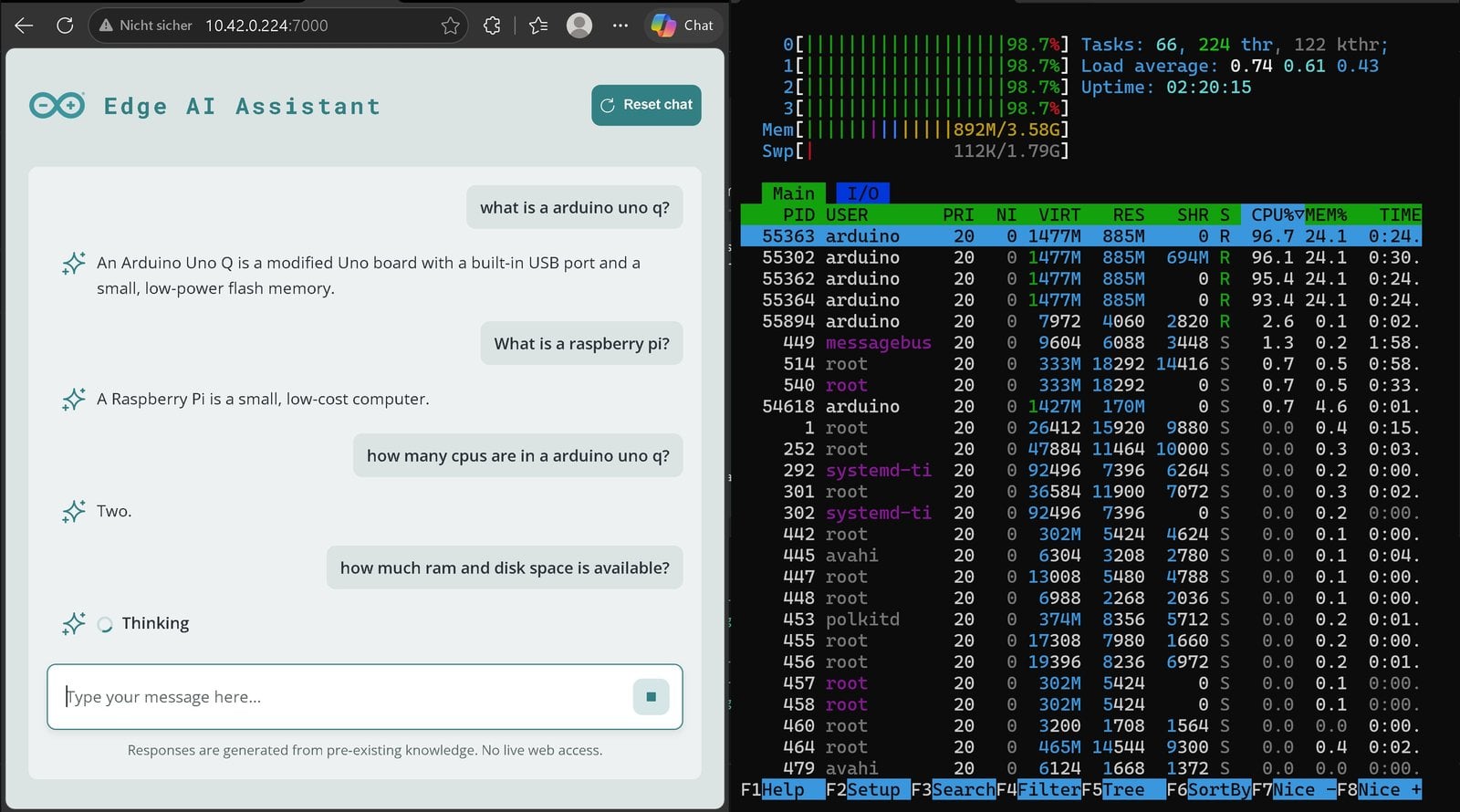
Gemma 3 1B writes fluently, but its facts are hit and miss. Asked “What is a Raspberry Pi?”, it gave a correct explanation. Asked about the UNO Q, it called it a “modified Uno board” with “two” cores, both wrong. It’s fine for brainstorming, rewording text or simple questions, but don’t rely on it as a source of facts.
Power draw is where the UNO Q shines: even while answering, it uses a fraction of what a Raspberry Pi 5 draws under load.
Where does the model run?
The chatbot only uses the CPU. While it’s answering, the system monitor htop shows all four cores at just under 99%. App Lab starts the model server from a CPU-only package (/opt/pkg-cpu/bin/llama-server) with the --device none flag, which tells llama.cpp not to offload anything to the GPU or any other accelerator. This isn’t a bug: llama.cpp can run on GPUs, but Arduino chose to ship the CPU-only build for the UNO Q.
Arduino’s UNO Q product page talks about an “onboard NPU”, a dedicated AI accelerator. Qualcomm, however, doesn’t list an NPU in its QRB2210 product brief. Alongside the four CPU cores, it has an Adreno 702 GPU and a Hexagon DSP, which Qualcomm lists for audio, sensor data and lightweight AI tasks.
To see how image recognition runs on the board, check out our guide on using your smartphone as a camera for AI object detection.
Limits, and when a Raspberry Pi is the better fit
- Small models only: models with around a billion parameters are the practical limit, and anything bigger is even slower on the four low-power cores. The large models behind cloud assistants won’t run here.
- No local voice chat: Arduino offers on-board speech input and output only on its bigger VENTUNO Q. On the UNO Q, you’d need the Cloud ASR (speech recognition) brick and a USB microphone, so your voice goes to the cloud.
- When to pick a Pi: if you want faster answers or bigger models, or you already run Ollama, a Raspberry Pi 5 is the better choice. The UNO Q wins on its point-and-click setup in App Lab.
Use the model in your own app
Your own programs talk to the model through the LargeLanguageModel class of the llm brick. Make a second copy of the example to experiment with, as in step 1: once you replace its main.py, the chat in that copy stops working. Open Files on the left, replace the contents of python/main.py with the code below and click Run. The answer shows up on the Python tab of the console at the bottom of App Lab.
from arduino.app_bricks.llm import LargeLanguageModel
from arduino.app_utils import App

# Use a fixed model (it must already be downloaded in App Lab).
# Q4_0 is the 4-bit quantized version of Gemma 3 1B.
llm = LargeLanguageModel(model="llamacpp:gemma-3-1b-it-Q4_0")

def ask_question():
    prompt = "Explain in two sentences what a language model is."
    for chunk in llm.chat_stream(prompt):
        print(chunk, end="", flush=True)
    print()
    raise StopIteration  # otherwise App.run keeps calling the function

App.run(user_loop=ask_question)
The console shows the model ID when an app starts. For Qwen, it’s llamacpp:Qwen3.5-0.8B-Q4_0. chat_stream() returns the answer piece by piece, while chat() returns it in one go. Add llm.with_memory(10) and the model remembers the last ten messages, just like the chat example. You’ll find the chatbot’s full source code in Arduino’s app-bricks-examples repository.
The model server runs in its own container and exposes an OpenAI-compatible API, the same kind of interface ChatGPT clients use. Apps on the board reach it at http://llamacpp-models-runner:9999/v1, and scripts in the board’s terminal at http://localhost:9999/v1. It isn’t reachable from your computer.
FAQ
Yes. Arduino’s App Lab example “Edge AI Assistant” runs a small language model such as Gemma 3 1B or Qwen 3.5 0.8B right on the board, using the llama.cpp engine, with no cloud involved. It runs on the CPU, so answers arrive at about reading speed.
Qualcomm doesn’t list an NPU for the QRB2210 chip, just the CPU, an Adreno GPU and a Hexagon DSP for audio, sensor data and lightweight AI tasks. Arduino’s product page still mentions an “onboard NPU”. The App Lab chatbot runs entirely on the CPU.
Locally. The answers are generated on the board, and your prompts never leave your network. You need internet access to sign in to App Lab and on the first run, when the model and containers are downloaded. The chat page also loads a small library from the web to display the answers.
Both use the llama.cpp engine. A Raspberry Pi 5 running Ollama answers faster and can load larger models. The UNO Q uses far less power and usually sets up in App Lab without touching the command line.
Not locally. Speech input and output on the board itself are only available on Arduino’s bigger VENTUNO Q. On the UNO Q, speech input would have to go through a cloud service.
App Lab offers Gemma 3 1B (more polished answers in our German-language tests) and Qwen 3.5 0.8B (faster) for the UNO Q. According to Arduino, App Lab 0.11 and later also let you add your own GGUF models from Hugging Face. Models with around a billion parameters are still the practical limit.
You need a free Arduino account for App Lab. There’s no subscription or paid API: the models run for free on your own board.
Bottom line
The UNO Q won’t replace ChatGPT, but your questions stay on your own hardware. If you work with sensitive data, tinker on your own projects or just want to see how local AI works, it’s a good place to start. Let us know in the comments which model and which use case work best for you.