
Raspberry Pi Commands Cheat Sheet: 120+ Terminal Commands
Whether you just flashed a fresh SD card or you’ve been running your Pi for years, sooner or later you end up staring at the terminal, unable to remember the exact command. This Raspberry Pi commands cheat sheet collects over 120 terminal commands for Raspberry Pi OS in one place – from first steps through GPIO and the camera to bootloader updates and SD card backups. Not a tutorial to read through, but a reference to look up and copy.
A Raspberry Pi cheat sheet is a compact reference list of the most important terminal commands for Raspberry Pi OS, grouped by topic such as system, network, GPIO, or backup. It’s not a substitute for a tutorial — it’s a quick lookup for commands you don’t want to memorize permanently.
<path> or <service> with your own values. Commands prefixed with sudo need admin rights.
Get all 120+ commands as a free PDF download – no sign-up required.
First Steps & System Basics
The basics you need first on any freshly set-up Pi.
| Command | What it does |
|---|---|
sudo raspi-config | Opens the central menu-driven configuration tool: locale, boot behavior, interfaces (SSH, VNC, SPI, I2C, serial port) – most base settings live here. |
passwd | Changes the password of the currently logged-in user – asks for the old password first, then the new one twice. |
sudo reboot | Restarts the Pi cleanly, shutting down all running services properly first. |
sudo shutdown -h now | Shuts the Pi down safely right away (h = halt) – important before pulling the power cable, or you risk SD card corruption. |
sudo shutdown -r +5 | Warns all logged-in users about a restart in 5 minutes, then reboots automatically. |
whoami | Prints the username of the currently active terminal user – handy after an su or sudo -i. |
hostname | Shows just the device name (no domain) the Pi announces on the network. |
hostname -I | Lists every IPv4/IPv6 address assigned to the Pi (LAN, Wi-Fi, VPN) on one line – see also our full guide to finding the IP address. |
uname -a | Prints kernel name, version, build date, and architecture (e.g. aarch64) in one line – useful for compatibility checks. |
cat /etc/os-release | Shows the name, version number, and codename of the installed Raspberry Pi OS – more reliable than uname for the OS version. |
date | Shows the current date and time including timezone, e.g. to cross-check cron or log timestamps. |
timedatectl | Shows local time, UTC, timezone, and NTP sync status; use sudo timedatectl set-timezone to change the timezone directly. |
uptime | Shows time since the last boot plus system load over the last 1/5/15 minutes (load average). |
System Info & Diagnostics
vcgencmd is Pi-exclusive (Broadcom firmware interface) and doesn’t work on plain Debian.
| Command | What it does |
|---|---|
vcgencmd measure_temp | Reads the SoC temperature straight from the sensor, e.g. temp=42.8'C – above 80°C the Pi throttles the clock, above 85°C it’s throttled further. |
vcgencmd get_throttled | Checks whether the Pi has been throttled due to low power or high temperature. 0x0 means everything’s fine – any other value means this has happened, either right now or at some point since the last boot. |
vcgencmd measure_volts | Shows the voltage of the core component by default; use sdram_c/sdram_i/sdram_p for the RAM areas. |
vcgencmd measure_clock arm | Shows the current CPU clock frequency in Hz – compare it against the clock speed set in config.txt (arm_freq). |
vcgencmd get_config int | Lists every integer config.txt parameter (e.g. arm_freq, over_voltage) with its currently active value. |
vcgencmd version | Shows the version and build date of the VideoCore firmware – useful when reporting bugs. |
free -h | Shows RAM and swap usage in readable units (h = MB/GB instead of bytes), including available and cached memory. |
df -h | Shows used/free space on all mounted filesystems in readable units – useful for catching a full SD card early. |
du -sh <folder> | Calculates the total size of a folder (s = summarized, h = readable) – great for tracking down space hogs before cleaning up. |
top | Shows running processes live, sorted by CPU usage – press q to quit, P/M to re-sort by CPU or memory. |
htop | Colorful, scrollable, mouse-friendly alternative to top with a per-core usage bar (install with sudo apt install htop if needed). |
lscpu | Shows core count, architecture, clock range, and cache sizes of the CPU in a structured format. |
Files & Directories
| Command | What it does |
|---|---|
ls -la | Lists all files including hidden ones (-a, starting with a dot) in long format (-l: permissions, owner, size, date). |
cd <path> | Changes the working directory; cd .. goes up one level, cd with no argument returns to the home directory. |
pwd | Prints the full, absolute path of the current directory (print working directory). |
cp <source> <target> | Copies a single file – an existing target is overwritten without confirmation. |
cp -r <source> <target> | Copies an entire folder with everything inside it, including nested subfolders (that’s what the extra -r flag does) – without it, cp fails with an error on folders. |
mv <source> <target> | Moves a file/folder, or renames it if source and target are in the same directory. |
rm <file> | Deletes a file permanently – there’s no trash bin and no default undo. |
rm -r <folder> | Deletes a folder and everything inside it, including nested subfolders (-r) – combined with -f (force) there’s no confirmation at all, so use with extra caution. |
mkdir <name> | Creates a new, empty folder; -p also creates any missing parent folders. |
touch <file> | Creates an empty file if it doesn’t exist, or just updates the timestamp of an existing one. |
nano <file> | Opens the file in the beginner-friendly terminal editor – save with Ctrl+O, exit with Ctrl+X. |
cat <file> | Prints the entire file content at once – unwieldy for long files, where less is the better choice. |
less <file> | Opens the file for page-by-page browsing (arrow keys, / to search) without loading it entirely into memory. |
find <path> -name "<pattern>" | Searches a folder and all of its subfolders for filenames; the pattern supports wildcards like *.log for “anything ending in .log”. |
grep -r "<text>" <path> | Searches a folder and all of its subfolders (-r) for a piece of text and shows the filename plus the matching line for every hit. |
tar -czvf archive.tar.gz <folder> | Packs a folder into a compressed archive (c = create, z = gzip, v = verbose, f = filename). |
tar -xzvf archive.tar.gz | Extracts a gzip-compressed tar archive (x = extract) into the current directory. |
chmod +x <file> | Sets the execute permission for owner, group, and others – required so scripts can be run directly with ./script.sh. |
sudo chown <user>:<group> <file> | Changes the owner and group of a file. On Raspberry Pi OS every user has a group of the same name, so a typical call is sudo chown max:max notes.txt – often needed when files were created as root, e.g. via FTP. |
Network & SSH
| Command | What it does |
|---|---|
ip a | Shows all network interfaces (eth0, wlan0, lo) with their IPv4/IPv6 addresses and status (UP/DOWN) – more detailed than hostname -I. |
ping <address> | Sends ICMP packets to a target and measures response time – stop with Ctrl+C, limit to 4 packets with -c 4. |
nmcli device wifi list | Lists every Wi-Fi network in range with signal strength and encryption type. |
nmcli device wifi connect "<SSID>" password "<password>" | Connects to a Wi-Fi network directly from the command line, without opening raspi-config. |
iwgetid | Shows the SSID of the currently connected Wi-Fi network – the fastest check for whether a Wi-Fi connection exists at all. |
sudo raspi-config nonint do_ssh 0 | Enables SSH non-interactively via script (0 = on, 1 = off) – ideal for automating headless setups, see also our SSH tutorial. |
ssh <username>@<ip-address> | Opens an encrypted terminal connection to the Pi – on first connect you must confirm the host fingerprint. Use the username you set in Raspberry Pi Imager – there has been no default pi user since 2022. |
scp <file> <username>@<ip>:<target-path> | Copies a file to the Pi over SSH, same syntax as cp with a host address prepended. |
ssh-keygen -t ed25519 | Generates a modern, secure SSH key pair – transfer the public key to the Pi afterwards with ssh-copy-id for passwordless login. |
curl -I <URL> | Fetches only the HTTP response headers without downloading the page content – a quick test whether a server is reachable and what status it returns. |
wget <URL> | Downloads a file straight into the current directory, and supports resuming interrupted downloads with -c. |
sudo raspi-config nonint get_hostname | Prints the currently set hostname – the counterpart to do_hostname for setting a new one. |
In detail: wget and curl on the Raspberry Pi – resume and verify downloads, understand curl -fsSL and fix the typical error messages.
Package Management (APT)
| Command | What it does |
|---|---|
sudo apt update | Refreshes the package lists from the configured repositories – installs nothing yet, but is required before upgrade/install. |
sudo apt upgrade -y | Upgrades all installed packages and pulls in new ones when an update depends on them. Never removes a package – if an upgrade would require that, the affected package stays at its current version (-y auto-confirms). |
sudo apt full-upgrade -y | Like upgrade, but may also remove packages if needed to resolve version conflicts – recommended for larger OS updates. |
sudo apt install <package> | Installs a new package along with all required dependencies. |
sudo apt remove <package> | Uninstalls the program but leaves config files in /etc untouched – handy if you plan to reinstall later. |
sudo apt purge <package> | Removes the program and its config files completely – for a truly clean reinstall. |
sudo apt autoremove | Removes automatically installed dependencies that no remaining package needs anymore. |
apt list --installed | Lists every package installed via apt/dpkg with its version – combines well with | grep <name>. |
apt-cache search <term> | Searches package names and short descriptions in the repositories by keyword, before you know the exact package name. |
dpkg -l | grep <name> | Checks directly via dpkg (the layer beneath apt) whether and in which version a package is installed. |
sudo apt clean | Deletes downloaded .deb install files from /var/cache/apt/archives – frees up space quickly when storage is tight. |
Processes & Services (systemd)
| Command | What it does |
|---|---|
systemctl status <service> | Shows whether a service is active/inactive/failed, since when, and includes the most recent log lines. |
sudo systemctl start <service> | Starts a service right away, without changing its autostart behavior on the next boot. |
sudo systemctl stop <service> | Stops a running service immediately, without disabling it permanently. |
sudo systemctl restart <service> | Stops and starts a service again in one step – the standard move after a config change. |
sudo systemctl enable <service> | Makes the service start automatically on every system boot. |
sudo systemctl disable <service> | Removes the autostart entry – the service then needs to be started manually, though it may still be running until the next reboot. |
systemctl list-units --type=service | Lists all currently loaded services with their status (active/inactive/failed). |
ps aux | Shows all running processes from every user with PID, CPU/RAM usage, and the full command. |
ps aux | grep <name> | Filters the process list by name – the fastest way to find a program’s PID. |
kill <PID> | Politely asks a process to shut down – it gets a chance to clean up first (e.g. save files), but won’t always respond right away. |
kill -9 <PID> | Terminates a process immediately, with no chance to clean up first – only use this if plain kill doesn’t work. |
killall <name> | Terminates every process with this exact name at once, without having to look up the PID first. |
journalctl -xe | Shows the most recent system logs with extended explanations (-x) jumped to the end of the log (-e) – the first step for any error after boot. |
journalctl -u <service> -f | Follows a specific service’s log live (-f = follow, like tail -f) – ideal for debugging while it starts. |
GPIO & Hardware Interfaces
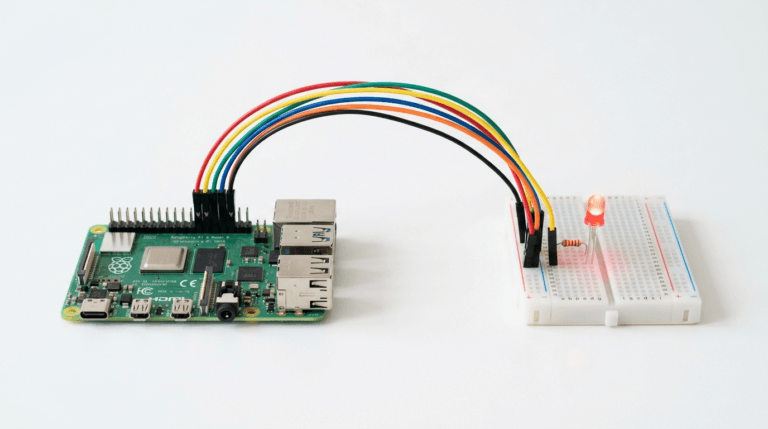
gpio readall command from the WiringPi library is considered deprecated and is no longer included in current Raspberry Pi OS repositories. For new projects, use pinctrl instead – it comes preinstalled on Raspberry Pi OS and replaces raspi-gpio, which is no longer maintained either. More background in the GPIO beginner’s tutorial.
| Command | What it does |
|---|---|
pinctrl get | Shows function (mode), pull-up/down resistor, and current level (hi/lo) for every GPIO, one line per pin. |
pinctrl get <pin> | Shows mode, pull resistor, and level for a single pin only, e.g. pinctrl get 17. You can also pass a list or a range, such as pinctrl get 2-4. |
pinctrl set <pin> op dh | Configures the pin as output (op) and drives it high/3.3V directly (dh = drive high). pinctrl writes straight to the GPIO registers and bypasses any drivers, so treat it as a testing tool. |
pinctrl set <pin> op dl | Configures the pin as output and drives it low/0V (dl = drive low). |
pinctrl funcs | Lists every available alternate hardware function (e.g. I2C, SPI, UART, PWM) for each pin. Add a pin number (pinctrl funcs 17) to show just that one. |
sudo raspi-config nonint do_i2c 0 | Enables the I2C interface including the required kernel modules, without opening the menu (0 = on, 1 = off). |
sudo raspi-config nonint do_spi 0 | Enables the SPI interface non-interactively – a prerequisite for many displays and ADC modules. |
i2cdetect -y 1 | Scans I2C bus 1 (the default on current models) and shows the addresses of all detected devices in a table. |
sudo raspi-config nonint do_serial_hw 0 | Turns on the UART on GPIO 14/15 (enable_uart=1, or dtparam=uart0=on on the Pi 5), e.g. for GPS modules. On the Pi 3 and 4 that’s the mini UART (/dev/serial0); to use the more stable PL011 there, you also need dtoverlay=disable-bt. |
Camera Module
rpicam-* command set (successor to libcamera-* and the old raspistill). The old command names are gone, so older scripts using libcamera-still, libcamera-vid or raspistill need to switch to rpicam-still or rpicam-vid.
| Command | What it does |
|---|---|
rpicam-hello | Opens a live camera preview for a few seconds on the connected display – the simplest functional test. |
rpicam-still --list-cameras | Lists every camera module detected by the system, with sensor name and supported resolutions. |
rpicam-still -o image.jpg | Captures a single photo after a brief autofocus/exposure adjustment and saves it under the given name. |
rpicam-vid -t 10000 -o video.h264 | Records a video for the duration given in -t, in milliseconds (here: 10 seconds). |
Bootloader, Firmware & Updates
Pi-exclusive: EEPROM bootloader management only exists on real Raspberry Pi hardware (Pi 4/5).
| Command | What it does |
|---|---|
vcgencmd bootloader_version | Shows the version date and build timestamp of the currently flashed EEPROM bootloader. |
sudo rpi-eeprom-update | Compares the installed version against the latest available bootloader version, without changing anything (a pure check). The output also shows the release channel (default or latest). |
sudo rpi-eeprom-update -a | Installs the latest available EEPROM version automatically – written by recovery.bin on the next reboot. |
sudo raspi-config nonint do_expand_rootfs | Expands the root partition to the full capacity of the SD card/SSD – already done automatically on first boot on most current images. |
sudo apt update && sudo apt full-upgrade -y | Combined command for a full system update including kernel and firmware packages in one go. |
Storage, SD Card & Backup
dd: if= (input) and of= (output) must never be swapped – a mix-up will irreversibly overwrite the wrong disk. Always check drive names first with lsblk. Find a detailed walkthrough in our backup tutorial.
| Command | What it does |
|---|---|
lsblk | Shows all block devices as a tree with partitions, sizes, and mount points – the safest first step before any dd command. |
sudo fdisk -l | Shows detailed partition tables (type, start/end sector, size) for all detected drives. |
sudo mount /dev/sda1 /mnt | Manually mounts partition sda1 into the (empty) /mnt directory, accessible through /mnt afterward. |
sudo umount /mnt | Cleanly unmounts a previously mounted drive – essential before physically unplugging it, to avoid data loss. |
sudo dd if=/dev/sdX of=backup.img bs=4M status=progress | Creates an exact 1:1 image of the entire card including the partition table; bs=4M speeds up the transfer, status=progress shows live progress. |
sudo dd if=backup.img of=/dev/sdX bs=4M status=progress | Writes a previously created image back onto a card/SSD – completely overwrites any existing data on the target. |
rsync -avh <source> <target> | Compares two folders and only transfers what’s new or changed – much faster than copying everything again from scratch. a also preserves permissions and timestamps, v lists every file individually, and h makes sizes readable (MB/GB instead of bytes). |
In detail: Raspberry Pi: check disk space and free up storage – read df, du and ncdu and clean up the card properly.
Users & Permissions
| Command | What it does |
|---|---|
sudo adduser <name> | Interactively creates a new user with a home directory, asking for a password and optional details. |
sudo deluser <name> | Removes a user account; the home directory is kept by default (use --remove-home to delete it too). |
sudo usermod -aG sudo <name> | Adds the user to the sudo group without removing them from any group they’re already in (that’s what the -a flag does) – without it, all other group memberships would be lost. |
groups <name> | Shows every group a user belongs to – e.g. to check whether they’re in gpio or i2c. |
who | Lists every currently logged-in user with terminal and login time, even across multiple simultaneous SSH sessions. |
sudo -i | Opens a session where you work permanently as administrator (root), instead of prefixing every single command with sudo – until you leave it with exit. Use with care, there’s no safety net here anymore. |
In detail: chmod and chown on the Raspberry Pi – read permissions, understand numeric and symbolic notation and fix “Permission denied” properly.
Keyboard Shortcuts & Terminal Tricks
| Shortcut | What it does |
|---|---|
Ctrl + C | Immediately cancels whatever command is currently running – the terminal’s emergency stop button when something hangs or you change your mind. |
Ctrl + Z | Pauses the process and sends it to the background – bring it back with fg, or keep it running in the background with bg. |
Ctrl + R | Starts an interactive reverse search through command history – typing filters live, Enter runs it. |
Tab | Auto-completes commands, filenames, and paths – press twice to show all options when there’s ambiguity. |
history | Shows a numbered list of recently run commands – use !123 to rerun command number 123 directly. |
!! | Runs the last command again exactly as typed, without retyping it. |
sudo !! | Repeats the last command with sudo prepended – handy when a command just failed due to missing permissions. |
clear | Clears the visible terminal output, though the scroll history remains accessible via the scrollbar. |
exit | Ends the current shell session – over an SSH connection, this also disconnects from the Pi. |
If you regularly run new scripts on your Pi, also check out our autostart guide – so programs launch automatically after every reboot without typing a command by hand.
The fastest way is hostname -I directly on the Pi – it shows all assigned IP addresses at a glance. Alternatively, ip a gives a more detailed overview of all network interfaces.
The gpio tool from the WiringPi library was removed from the official Raspberry Pi OS repositories because WiringPi hasn’t been actively maintained for a long time. Use pinctrl instead, which comes preinstalled on Raspberry Pi OS: pinctrl get shows the state of all pins, pinctrl funcs lists the available alternate functions. raspi-gpio, the tool recommended in the past, is no longer maintained.
Check with vcgencmd get_throttled. 0x0 means everything’s fine. Any other value shows that the Pi has been throttled due to low power at some point, either right now or since the last boot – usually a sign of a too-weak power supply or a bad cable.
apt upgrade updates your installed packages and only adds new ones when an update depends on them – it never removes anything. apt full-upgrade may also remove packages if that’s needed to resolve dependencies during larger updates.
sudo dd if=/dev/sdX of=backup.img bs=4M status=progress creates a 1:1 image of the entire card. Important: identify the correct drive with lsblk first, since mixing up if= and of= will overwrite the wrong target.