Change Zigbee Coordinator in Home Assistant – Migrate Your ZHA Network Without Re-Pairing
Want to change your Zigbee coordinator without re-pairing every thermostat, motion sensor and door contact afterwards? That is exactly what Home Assistant’s migration wizard, built right into ZHA, is for. It takes your entire Zigbee network – network key, channel, PAN ID and even the unique IEEE address of the old stick – and moves it over to the new adapter. Ideally, your devices never notice a thing and come back on their own after a few minutes.
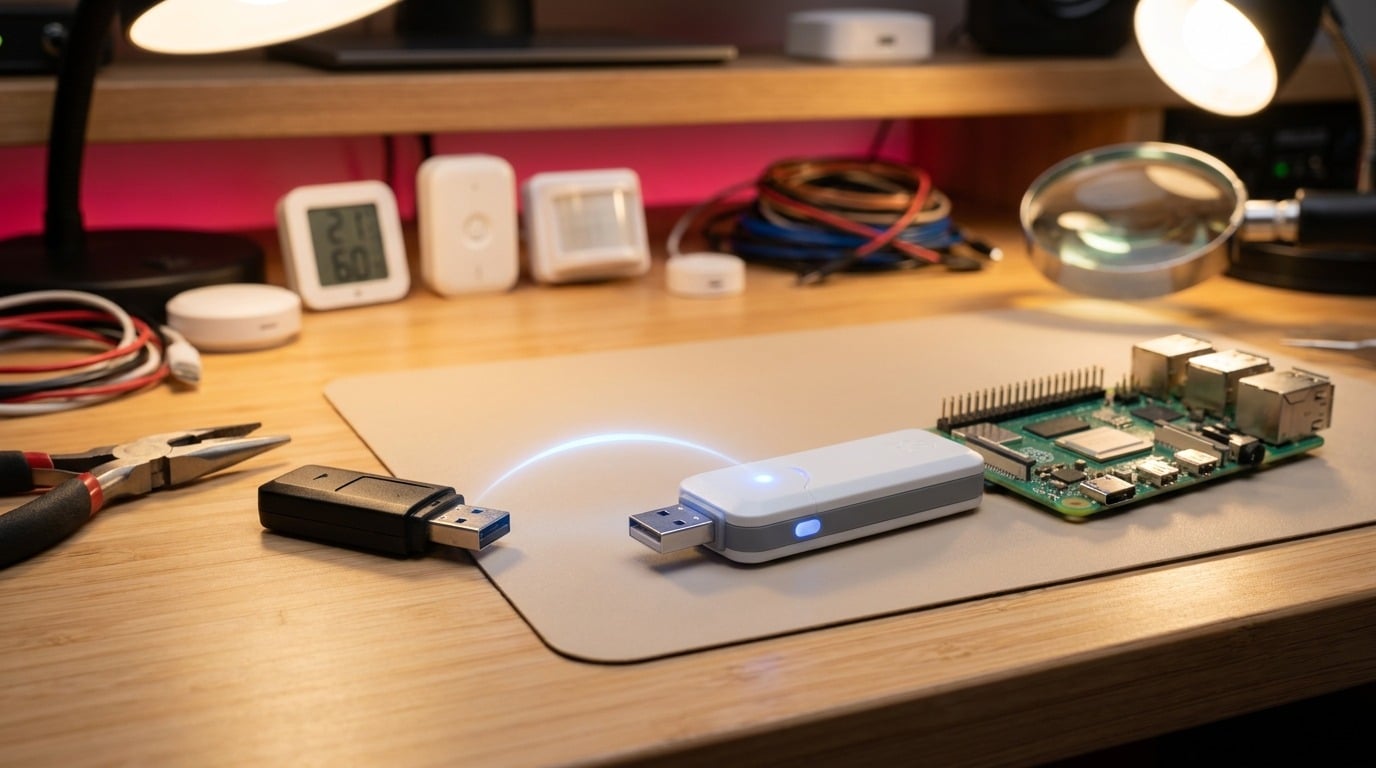
That is exactly what I did: my Zigbee network used to run on a SONOFF stick, while my Z-Wave devices ran on the Aeotec Z-Stick 10 Pro. Since the Z-Stick 10 Pro carries two radio chips and already speaks Zigbee, the SONOFF stick was effectively redundant – and I need it for a Thread project. So: Zigbee moves from the SONOFF to the Aeotec, and the SONOFF is freed up. In this article I walk you through the whole process with every dialog, the pitfalls, and the one point where many people get stuck: the duplicate IEEE address.
In a Zigbee coordinator migration, Home Assistant transfers the complete network identity of a Zigbee stick – network key, PAN ID, channel and IEEE address – to a new USB adapter via a backup. Your paired devices are preserved and do not need to be re-paired. The wizard is built right into the ZHA integration and works between adapters based on Silicon Labs, Texas Instruments and ConBee chips.
Why change the Zigbee coordinator at all?
There are a few typical reasons to swap the stick – and all of them favour migrating over rebuilding:
- Better chip, more range: Older sticks (with a CC2531, for example) hit their limits at 30–40 devices. Current coordinators with an EFR32MG24 or CC2652P handle far more and often come with an external antenna.
- Consolidating onto one stick: My case exactly. If one dongle can do Z-Wave and Zigbee, a USB port is freed up – on a Raspberry Pi with four ports that is worth more than it sounds.
- Making room for Thread and Matter: The freed-up stick can become a Thread radio with different firmware. That is my next step (more on that below).
- A broken or lost stick: If you have a current ZHA backup, you can restore the network onto a replacement stick – without re-pairing all your devices.
The key point: without migration you would have to reset and re-pair every single device. With battery-powered sensors glued somewhere behind a radiator, that is no fun. And every automation pointing at an entity ID would be broken afterwards.
Requirements: what the ZHA migration can and cannot do
Three things you should know before you start:
| Point | What applies |
|---|---|
| ZHA only | The wizard belongs to the ZHA integration. If you use Zigbee2MQTT, you take a different route (there it runs via a backup and an adjusted configuration.yaml). |
| Supported chips | Migration works between adapters from the EmberZNet/Silicon Labs (ezsp), Texas Instruments (znp) and ConBee/RaspBee (deCONZ) families – in any combination, so from TI to Silabs as well. |
| Backup from ZHA | The migration needs a network backup created by ZHA itself. The wizard creates one automatically – but you should still pull one by hand first (step 1). |
The hardware I used
This is the combination I ran the migration with. You can use any supported coordinator – the process stays the same.
| Device | Chip | Role in my setup | Price (approx.) |
|---|---|---|---|
| Aeotec Z-Stick 10 Pro* | EFR32MG21 (Zigbee) + EFR32ZG23 (Z-Wave) | New coordinator – takes over Zigbee on top of the existing Z-Wave | €66 |
| SONOFF ZBDongle-E* | EFR32MG21 | Old coordinator – gets freed up and becomes a Thread radio later | €20 |
| Home Assistant Connect ZBT-2* | EFR32MG24 | Alternative: the official stick | €60 |
On top of that you need a running Home Assistant – mine is running on a Raspberry Pi – and an existing Zigbee network in ZHA. In my case that was 10 devices with 41 entities.
Step 1: Create backups – three of them
I know, backups are boring. But the migration writes the IEEE address permanently to the new stick, and that operation cannot be undone with a single click. Take the five minutes.
1a. Zigbee network backup from ZHA
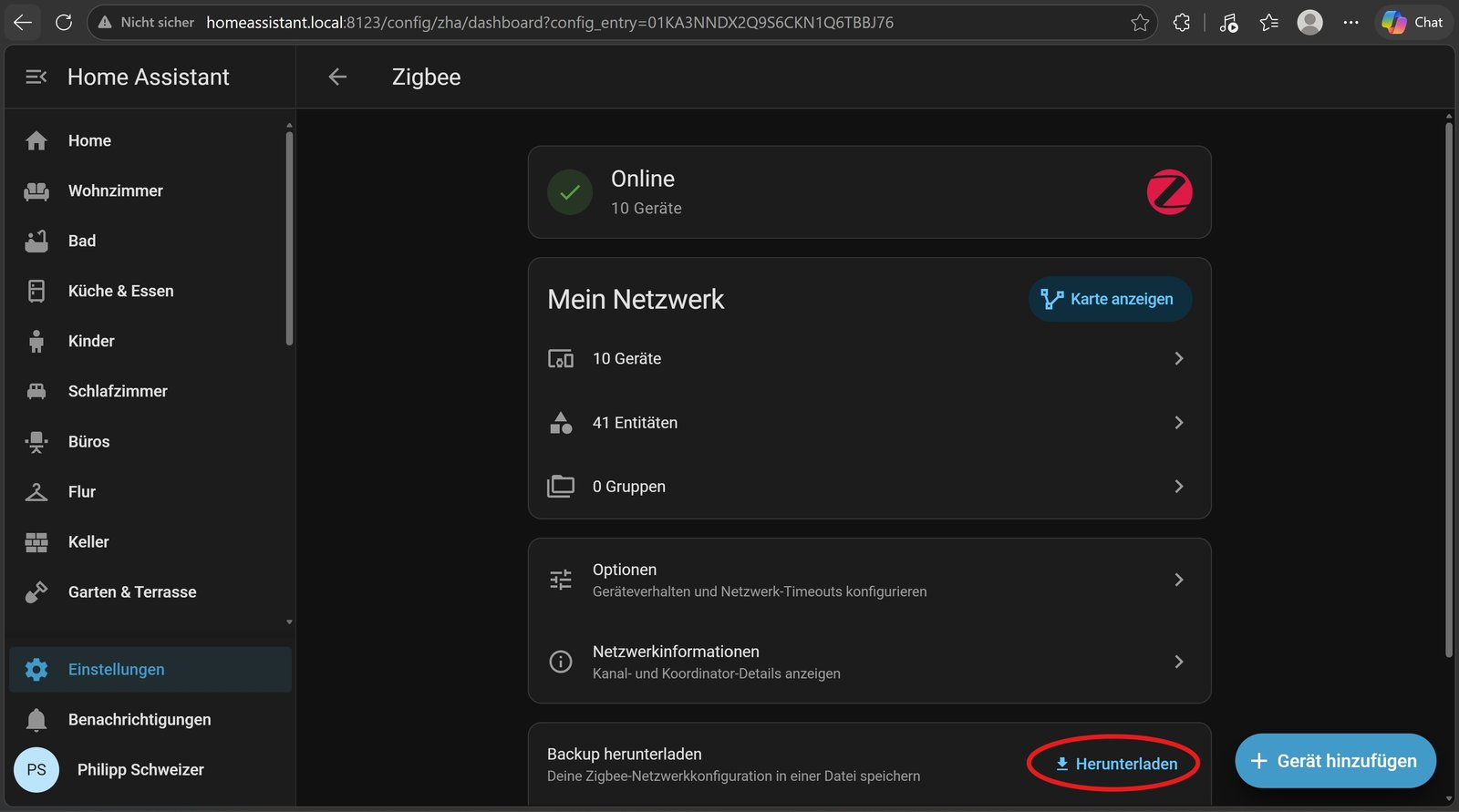
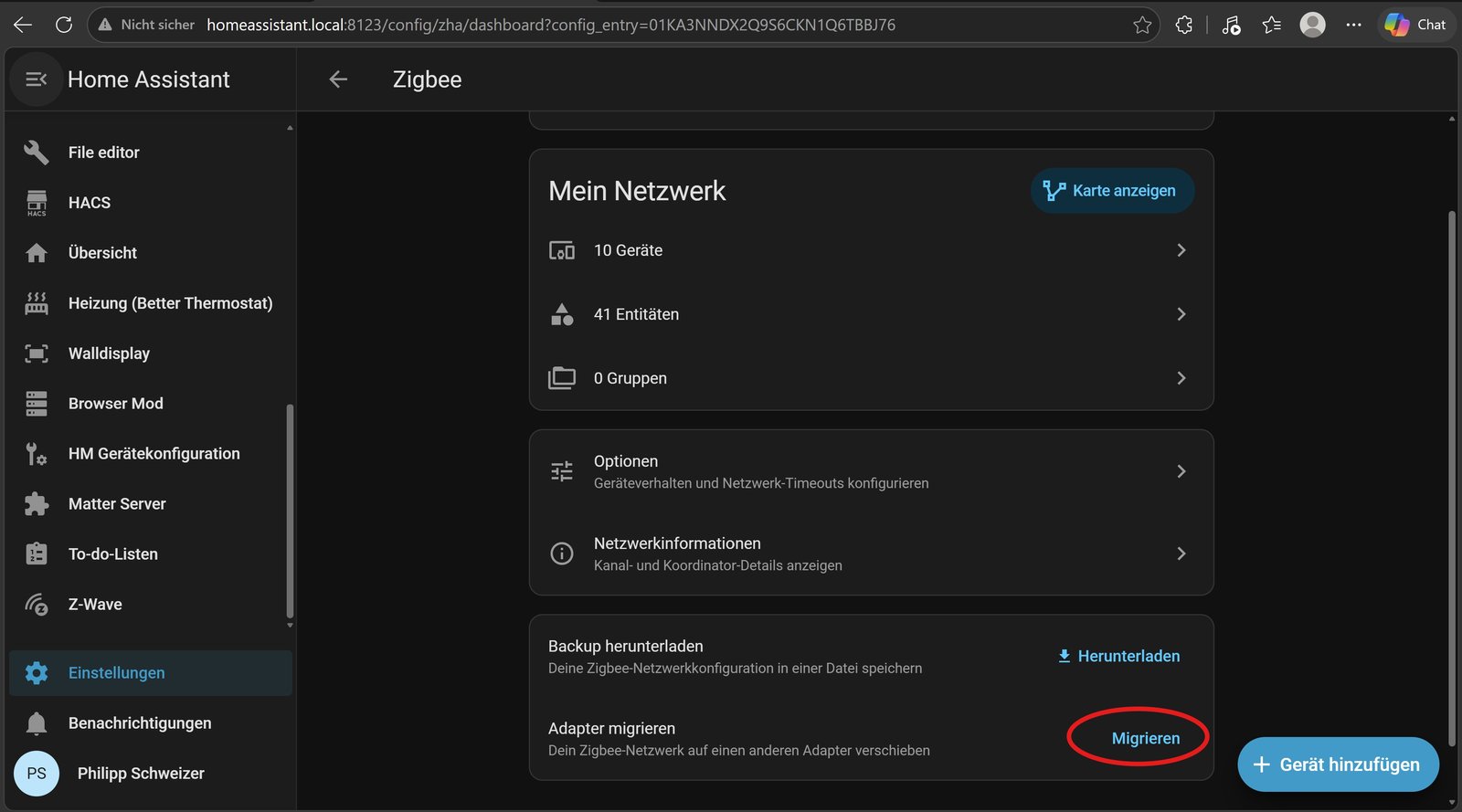
In Home Assistant go to Settings → Devices & Services → Zigbee (or straight to the ZHA dashboard). At the very bottom you will find “Download backup” – this saves your Zigbee network configuration as a file on your computer.
1b. Z-Wave backup (only if you use a combo stick)
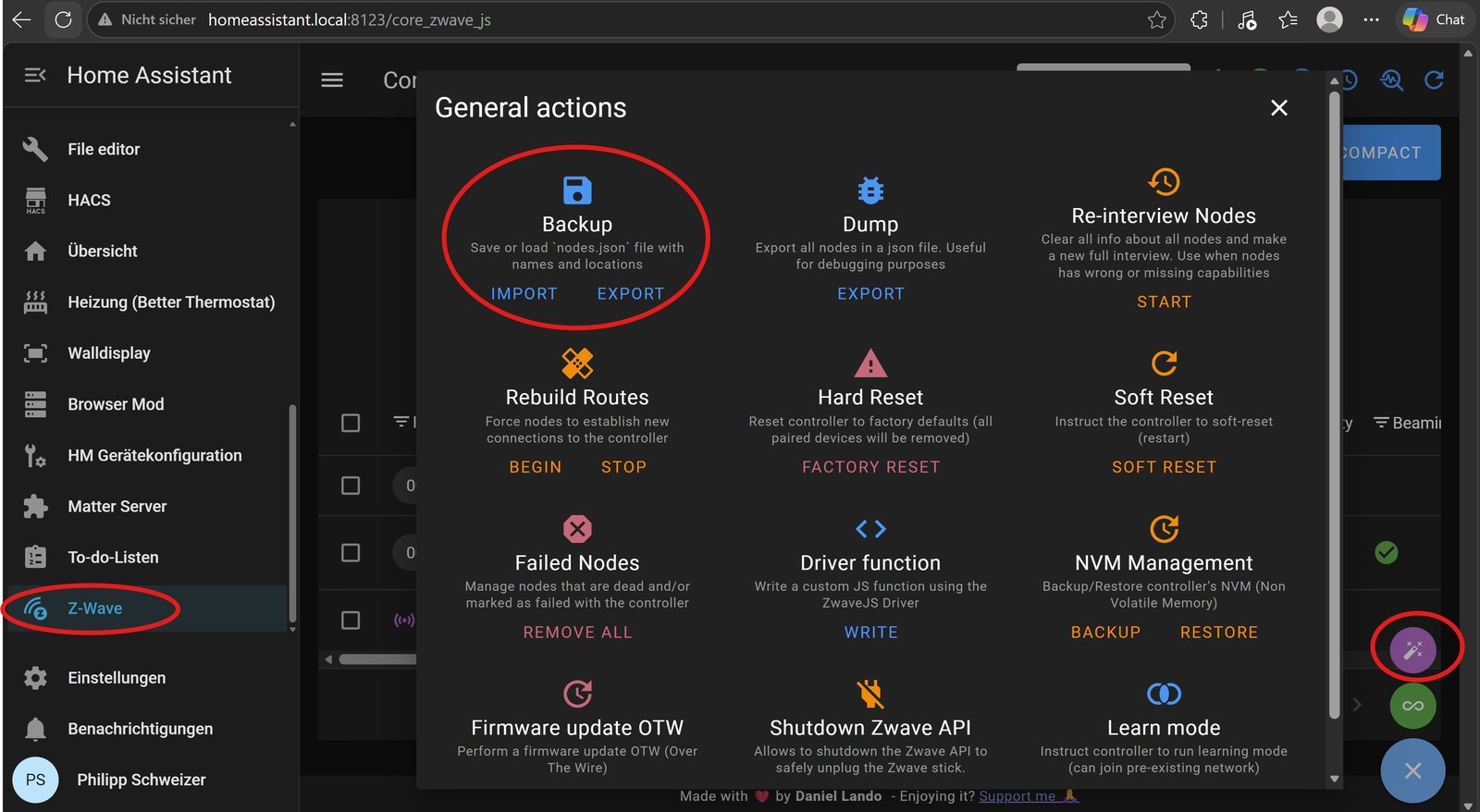
This only applies if another radio protocol is already running on the target stick – Z-Wave in my case. If something goes wrong while swapping sticks, I do not want to lose my Z-Wave nodes as well. In Z-Wave JS UI use the wand button at the bottom right to open General actions and export nodes.json (device names and locations) under Backup. To be extra safe, also run NVM Management → BACKUP to back up the controller memory.
1c. Full Home Assistant backup
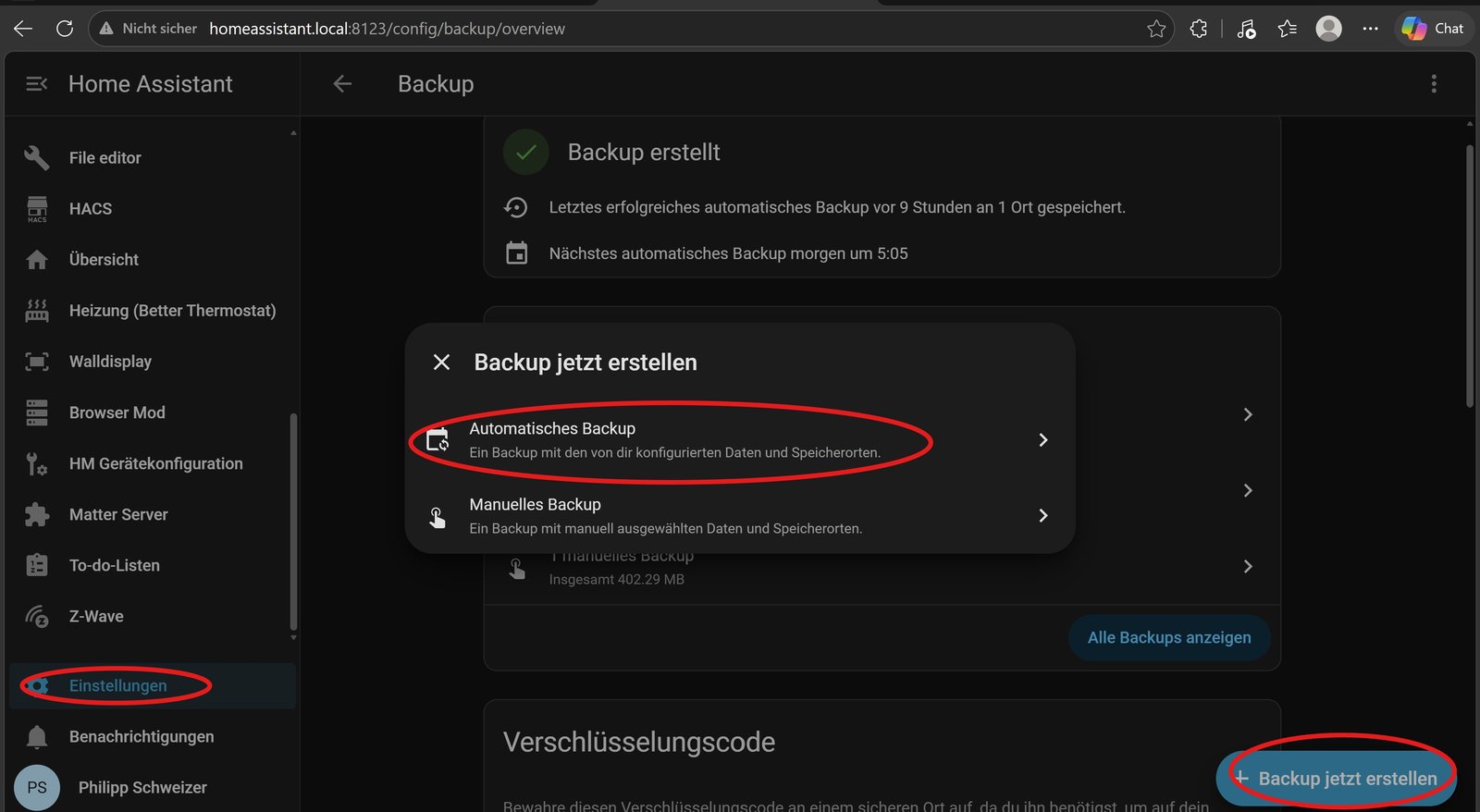
And finally the life insurance: a complete HA backup via Settings → System → Backups → Create backup now. “Automatic backup” is perfectly fine – it uses the data and storage locations you configured.
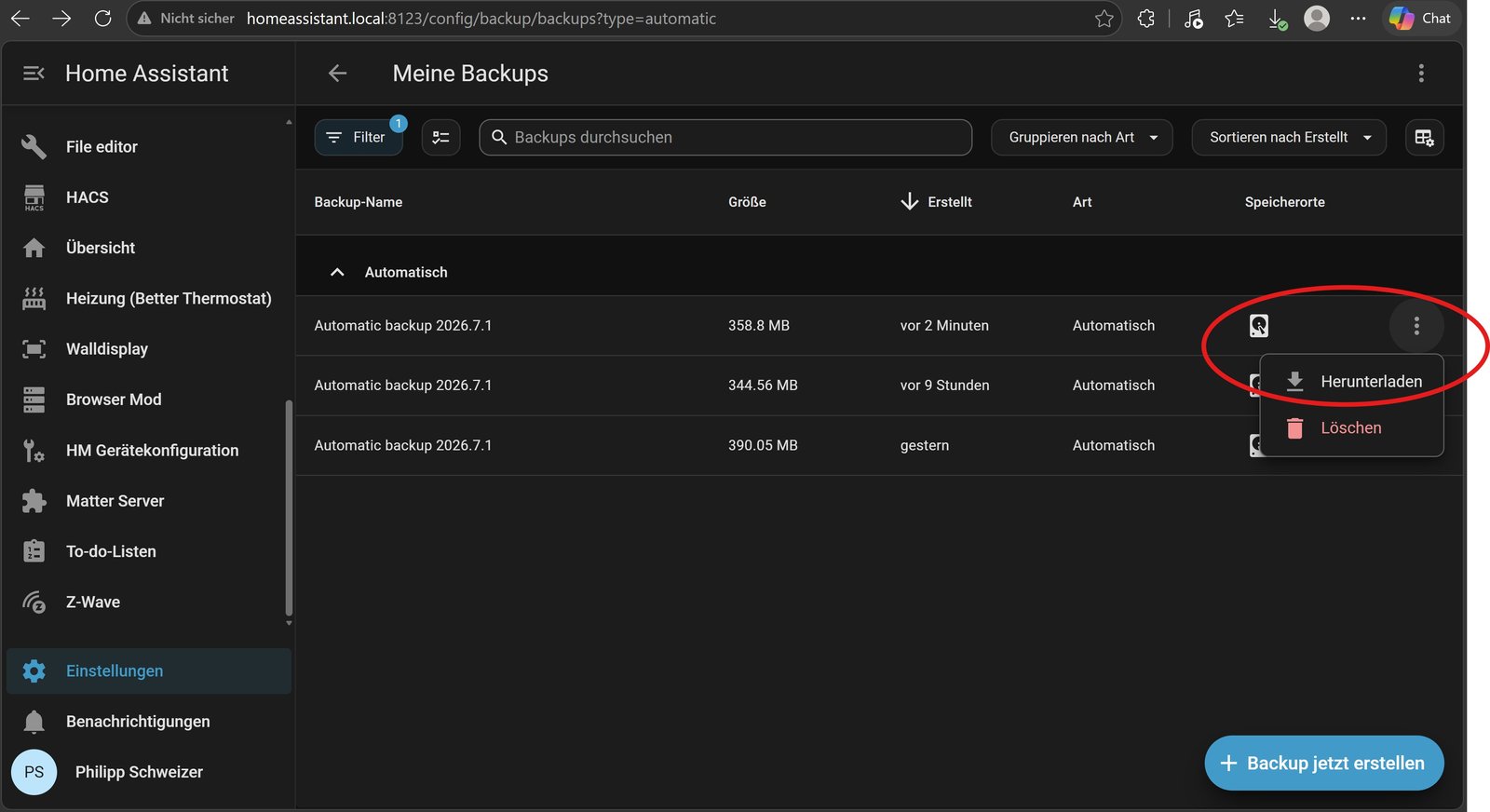
Important: download the backup afterwards. A backup that only lives on the very machine you are rebuilding is only half a backup. Use Show all backups and the three-dot menu on the right to get to Download.
Step 2: Plug in the new stick and find the right port
Now plug in the new coordinator – leave the old one plugged in for the moment. ZHA still needs it to pull the backup and hand the network over cleanly.
A USB extension cable is not a luxury, by the way: right next to a USB 3.0 port or an NVMe SSD, a 2.4 GHz radio stick picks up interference easily. 30–50 cm of distance make a measurable difference.
If Home Assistant runs in a VM (Proxmox in my case), you first have to pass the new stick through to the VM: Hardware → Add → USB Device → Use USB Port. Otherwise it will not even show up in the port list.
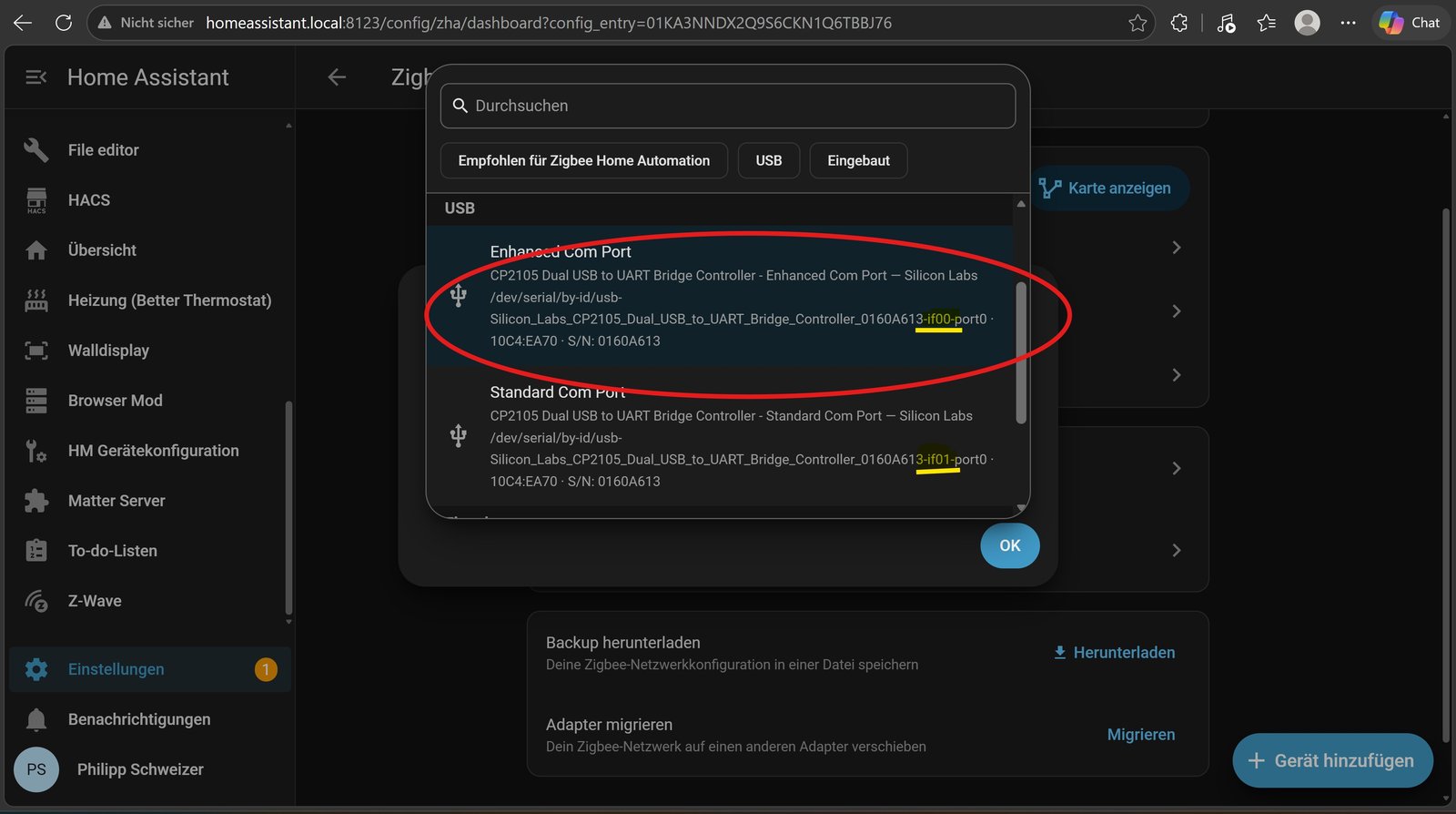
The Z-Stick 10 Pro has one peculiarity that will catch you off guard otherwise: the stick registers through a CP2105 chip with two serial ports – one for Zigbee, one for Z-Wave. So you will see two almost identical entries:
| Port | Path suffix | Radio |
|---|---|---|
| Enhanced Com Port | -if00-port0 | Zigbee ← this is the one we need |
| Standard Com Port | -if01-port0 | Z-Wave |
Remember which is which – in step 3 you have to click exactly the right one. On some revisions of the stick the assignment can be swapped, by the way: if the migration does not work with one port, simply try the other.
Step 3: Start the migration in ZHA
On the ZHA dashboard, below the backup button, you will find “Migrate adapter” with a Migrate link. That is where it starts.
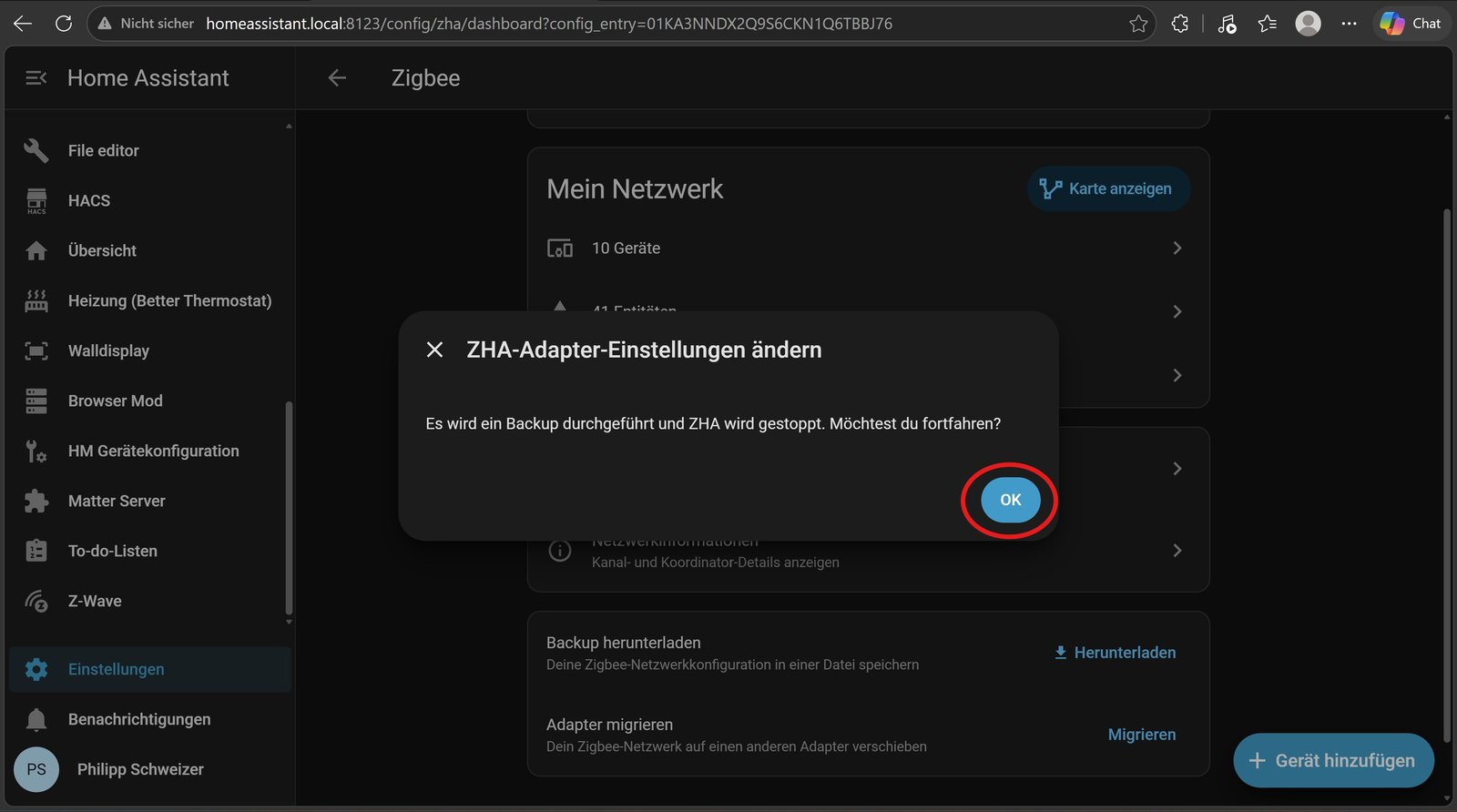
Home Assistant now warns you that a backup will be created and ZHA will be stopped. That is exactly what we want – OK.
In the next dialog HA asks whether you only want to change the settings of the current adapter or really switch to a new one. We pick “Migrate to a new adapter”.

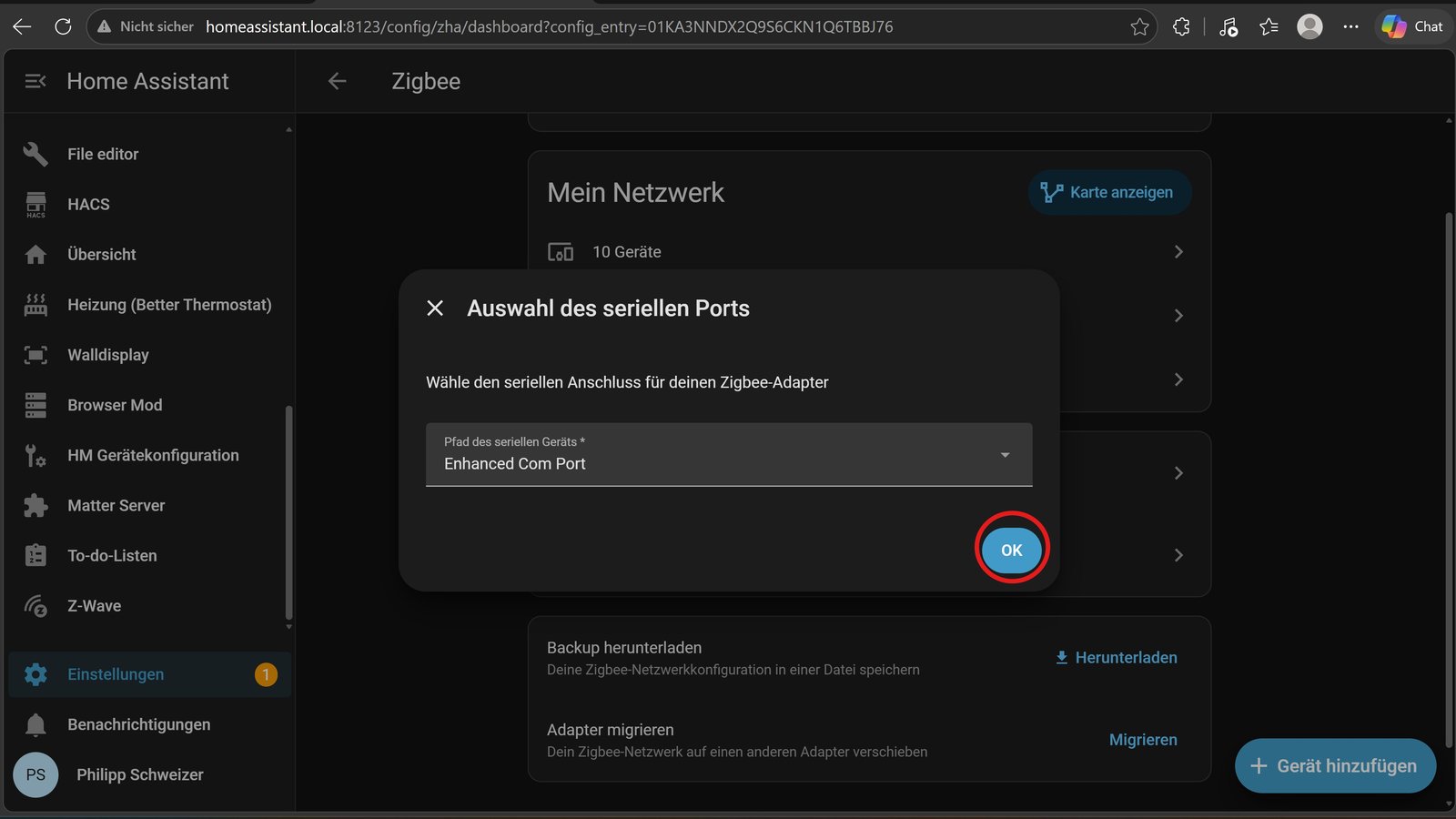
Now comes the port selection – and this is where the groundwork from step 2 pays off. Both ports of the Z-Stick 10 Pro show up in the list. Watch the suffix in the path: -if00-port0 is the Zigbee port, which is the Enhanced Com Port.
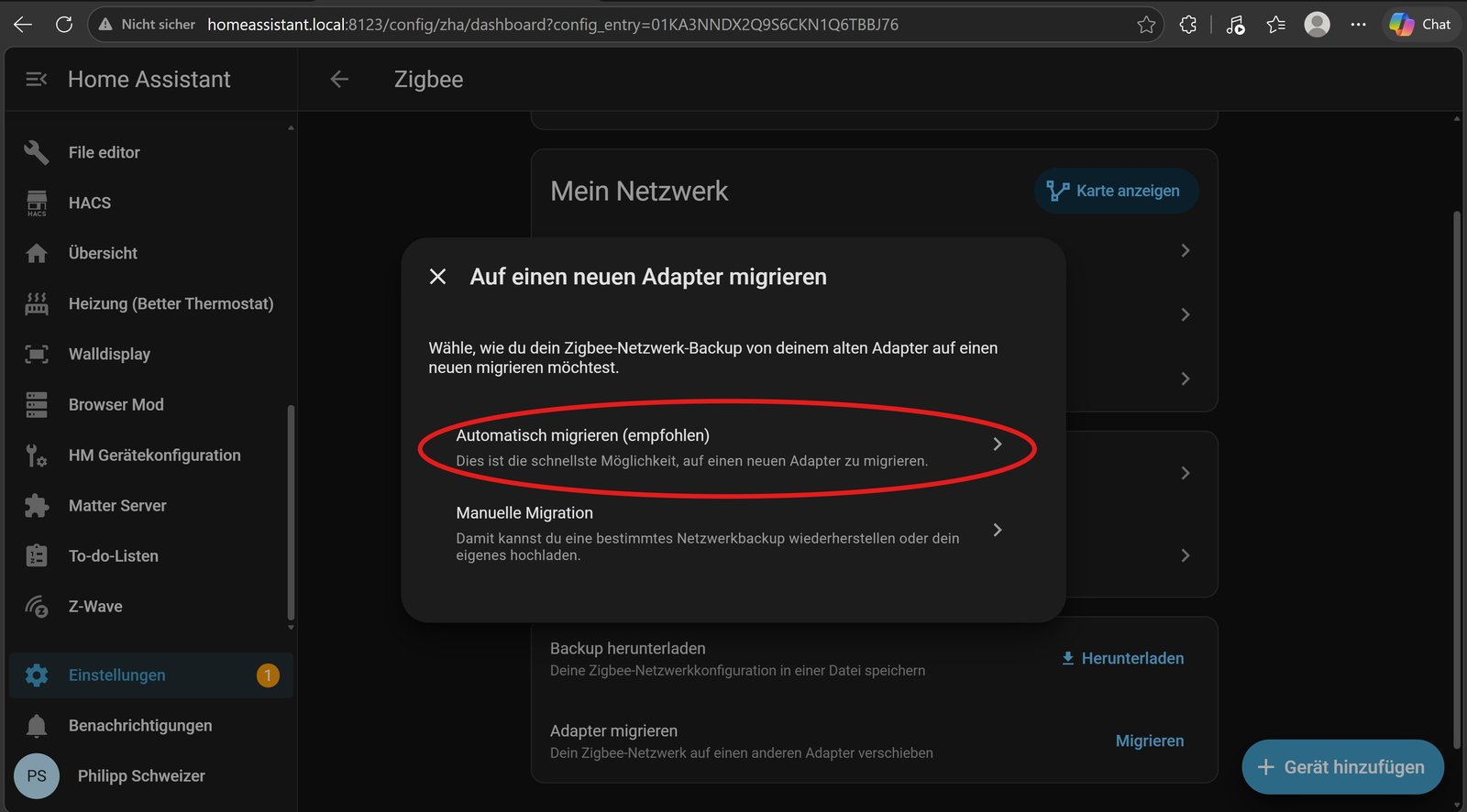
After that the wizard asks how to migrate. “Migrate automatically (recommended)” uses the backup ZHA just created – that is the standard route. You only need the manual migration if you want to restore a specific older backup or upload your own file (for instance if the old stick is dead).
The most important click: overwriting the IEEE address
And now for the dialog everything revolves around. Every Zigbee coordinator has a unique IEEE address – essentially its MAC address. Your devices know exactly this address as their coordinator. A new stick naturally has a different one.
So that your devices accept the new stick without being re-paired, Home Assistant writes the old IEEE address onto the new adapter. Tick “Permanently replace the adapter IEEE address” and confirm with OK. Home Assistant only shows this dialog if the new stick has a Silicon Labs chip (EZSP, such as the Aeotec Z-Stick 10 Pro or the SONOFF ZBDongle-E). Sticks with a TI or ConBee chip take over the IEEE address without asking – so if you don’t see the dialog, just carry on.
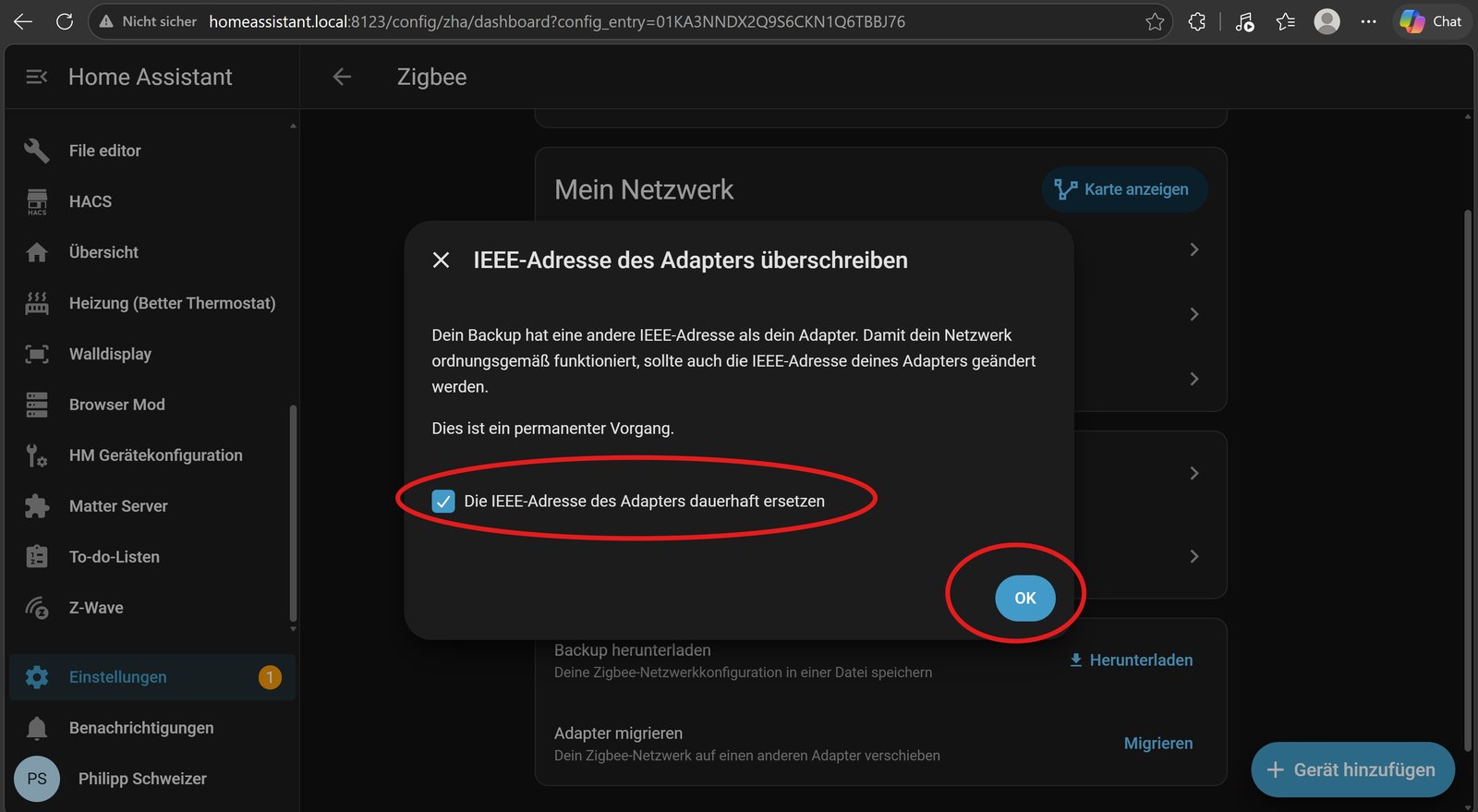
This really is permanent. From now on the new stick carries the identity of the old one. If you do not tick the box, you get to re-pair every device by hand afterwards – which is exactly what we wanted to avoid.
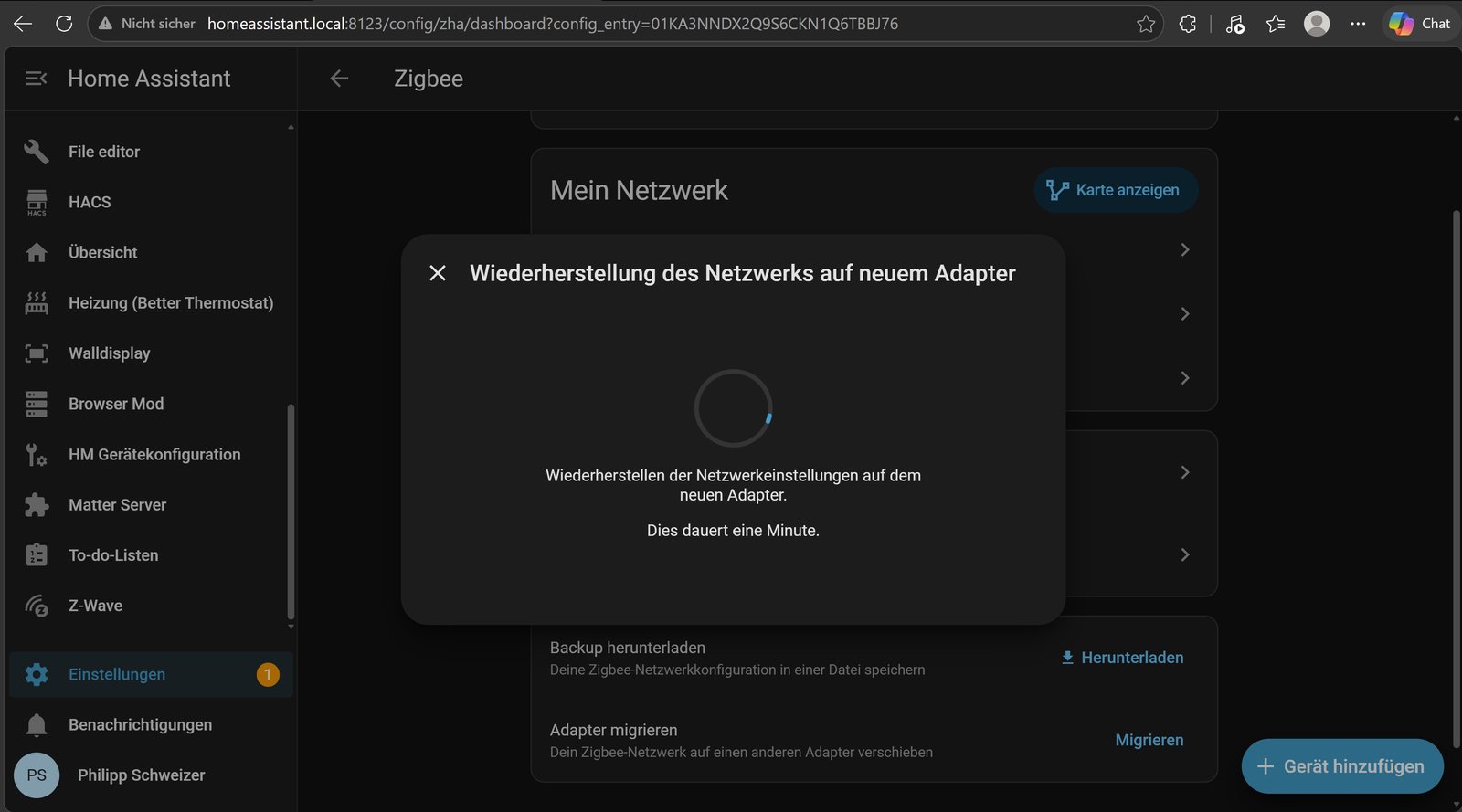
Home Assistant now restores the network settings onto the new adapter. This takes about a minute, and you do not have to do anything.
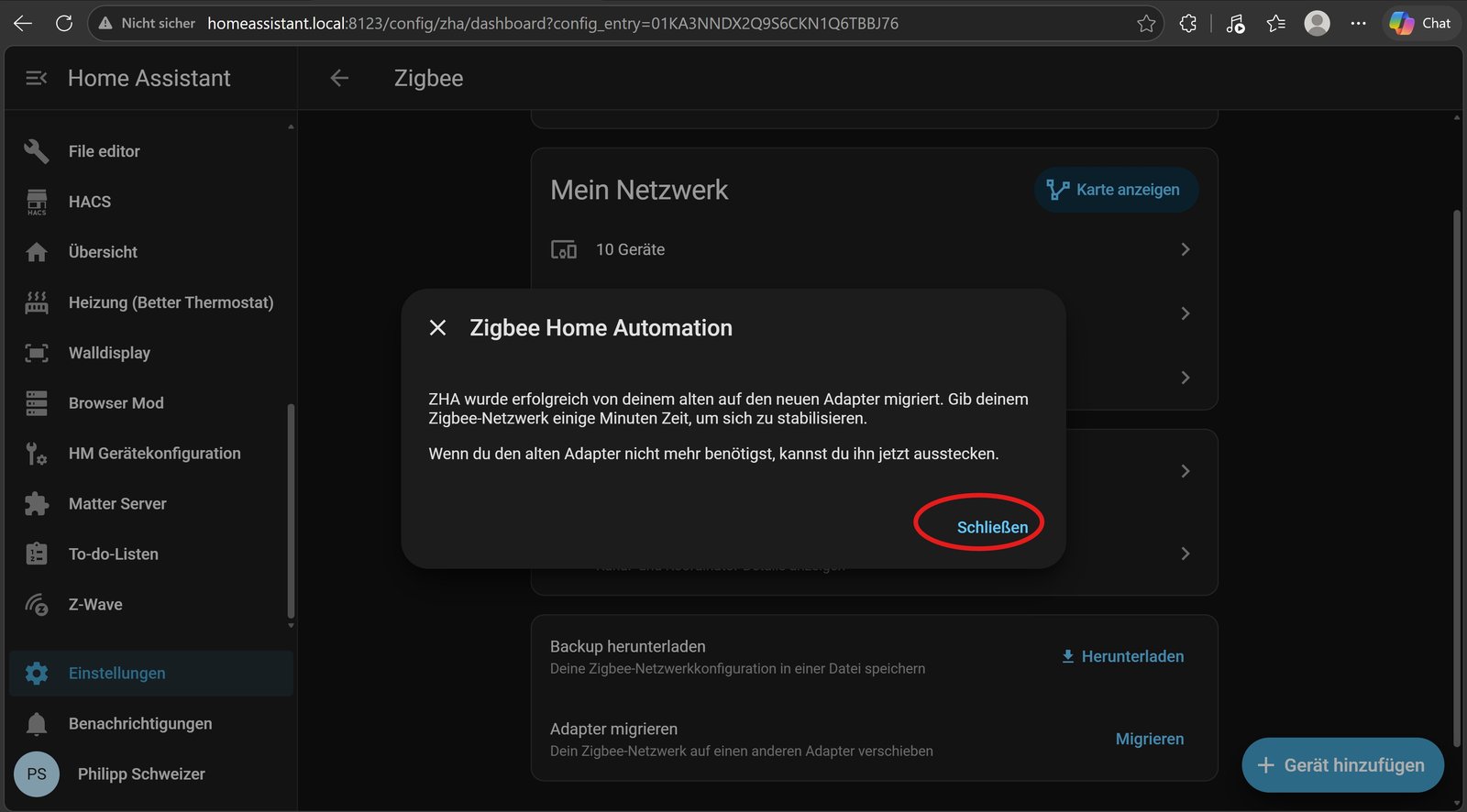
Finally ZHA reports success: the network has been migrated, and you can unplug the old adapter.
Step 4: Unplug the old stick – otherwise you get an IEEE conflict
This step is not optional, even though the dialog phrases it politely as “you can unplug it now”. After the migration both sticks carry the same IEEE address. Two coordinators with an identical address in the same radio space – that is about as healthy as two machines with the same IP on your network.
So: unplug the old stick, and do it before you continue. Then restart Home Assistant (Settings → System → Restart) so that ZHA comes up cleanly with the new adapter.
The old coordinator is reset during the migration, by the way – so you can safely repurpose it. If you do want to use it again as a Zigbee router or in a second network, you have to give it a new IEEE address first, otherwise it collides with the new stick.
Step 5: Wait for the devices to come back
After the restart the Zigbee dashboard looks sad at first: devices are shown as unavailable. That is normal. The end devices first have to notice that “their” coordinator is back and re-join.
In my case all 10 devices were back after a few minutes – without a single click. The official statement is more generous: it can take up to an hour, especially for battery-powered sensors that only wake up every few minutes.
You can speed things up like this:
- Mains-powered devices first: Briefly power-cycle bulbs, sockets and repeaters. They form the mesh backbone – once they are up, the sensors find their way back faster.
- Wake battery sensors: Pressing the pairing button or triggering the sensor (open/close a door, walk in front of the motion sensor) is usually enough.
- Do not re-pair! Seriously, do not. Give the network at least an hour before you touch a device – re-pairing undoes the migration for that device.
Via Show map on the ZHA dashboard you can see the network map and watch the routes rebuild. After waiting 60 minutes everything was done in my case, and the map showed all green.

Heads-up! In the Zigbee device overview the name of the stick was not updated even though the new stick was already active – which is confusing. Just rename the stick in the ZHA device overview; on the map it is shown correctly.
Troubleshooting: when things get stuck
| Problem | Cause & fix |
|---|---|
| The new stick does not show up in the port list | On VM installations the USB passthrough is not set up. In Proxmox: Hardware → Add → USB Device. Otherwise: try a different USB port and avoid USB 3.0 ports. |
| ZHA shows two coordinators after the migration | The old stick is still plugged in. Unplug it and restart Home Assistant. If the ghost entry remains, a restart with the old stick removed helps. |
| The migration fails with an error | Almost always the wrong serial port. On the Z-Stick 10 Pro, Zigbee sits on -if00-port0 (Enhanced Com Port), not on -if01. Otherwise try the other port. |
| Individual devices stay offline for hours | Open the device in ZHA and run Reconfigure (re-interview). If that does not help, power-cycle the device. Re-pairing is the last resort. |
| The network is noticeably slower than before | Mesh routes rebuild after a migration – give the network 24 hours. After that it is worth looking at the channel (Wi-Fi overlap) and the location of the stick. |
And now: Thread on the freed-up stick
That wraps it up: my Zigbee network now lives entirely on the Z-Stick 10 Pro, which keeps handling my Z-Wave on the side – one stick, two radio standards, one USB port saved. And the SONOFF ZBDongle-E is free.
It gets a new job: flashed with OpenThread firmware it becomes a Thread radio and thus the basis for a Thread Border Router – the prerequisite for Matter-over-Thread devices in Home Assistant. In theory the stick could even do Zigbee and Thread at the same time (MultiPAN), but in practice that has not worked out well in Home Assistant and is no longer recommended. One radio chip, one job – which is exactly why we separated them.
How to flash the SONOFF ZBDongle-E with OpenThread firmware and turn it into a Thread Border Router for Matter-over-Thread devices in Home Assistant is covered in a separate article: setting up a Thread Border Router in Home Assistant. There I flash the stick to OpenThread, set up the border router and move the radio channel safely away from the Zigbee network.
Until then: good luck with the migration – and while you are at it, take a look at the ESP32-C6 as a cheap Zigbee router to improve the range of your freshly migrated network.
No – as long as you use the ZHA migration wizard and let it transfer the IEEE address of the old stick to the new one. Home Assistant copies the network key, PAN ID, channel and IEEE address, so your devices recognise the new stick as their known coordinator. They usually come back on their own within a few minutes, and within an hour at most.
After the migration both sticks carry the same IEEE address. Two coordinators with an identical address in the same radio space cause conflicts – devices no longer know which one they belong to. Unplug the old stick right after the migration and restart Home Assistant.
Yes. ZHA migrates between adapters from the EmberZNet/Silicon Labs (ezsp), Texas Instruments (znp) and ConBee/RaspBee (deCONZ) families – in any combination, so from a TI-based CC2652P stick to a Silicon Labs adapter as well. The prerequisite is a network backup created by ZHA itself.
The Enhanced Com Port with the path suffix -if00-port0. The Z-Stick 10 Pro addresses its two radio chips through a CP2105 chip with two serial ports: -if00 is Zigbee, -if01 is Z-Wave. On some revisions the assignment can be swapped – if one port does not work, try the other.
No, the migration wizard belongs to the ZHA integration. With Zigbee2MQTT the adapter change runs via a Z2M backup and an adjusted configuration.yaml. The principle is the same though: the network identity including the IEEE address moves to the new stick so devices do not have to be re-paired.