File Permissions on the Raspberry Pi: chmod and chown Explained
“Permission denied” is one of the most common messages on a Raspberry Pi: when you start your own script, in a folder you created with sudo, on a USB stick or in the web server directory. Behind it is always the same system of owner, group and three permissions. Here you will learn how to read permissions with ls -l, change them with chmod and chown – and which command actually fixes which error.
chmod changes what is allowed (read, write, execute), chown changes who owns a file. Make scripts executable with chmod +x; take back files that belong to root after a sudo with sudo chown -R user:user folder. chmod 777 is almost never the right fix.
Which “Permission denied” do you have?
The message always looks the same, the cause does not. Match your case first:
| Situation | Cause | Fix |
|---|---|---|
./script.sh won’t start | execute permission missing | chmod +x script.sh |
File or folder can’t be edited, ls -l shows root root | created with sudo | sudo chown -R |
sudo echo … > /etc/… fails | the redirect runs without root | | sudo tee |
| Web server can’t write to a folder | folder belongs to root | owner www-data |
Access to /dev/ttyUSB0, GPIO or Docker denied | group missing | usermod -aG, log in again |
chmod has no effect on a USB stick | FAT/exFAT has no Linux permissions | mount options |
SSH reports bad permissions for a key | private key too open | chmod 600 |
One case that does not belong here is Permission denied, please try again at the SSH login. That is a wrong password or a rejected key, not a file permission – start with our guide to Raspberry Pi default passwords and login instead.
Reading permissions with ls -l
Before you change anything, check what is set right now. ls -l shows the permissions, owner and group of every file. Right after creating a script and a folder, it looks like this:
ls -l-rw-r--r-- 1 pi pi 32 Sep 25 19:20 hello.sh
drwxr-xr-x 2 pi pi 4096 Sep 25 19:20 projectsRead the first ten characters like this: the first one is the type (- file, d directory, l symbolic link), followed by three groups of three for the owner, the group and everyone else. The two names after the number are owner and group – on your Pi that is the user name you chose during setup.
| Letter | on files | on directories | Value |
|---|---|---|---|
r | read the content | list file names | 4 |
w | change the content | create, rename, delete files | 2 |
x | run as a program | enter and access files inside | 1 |
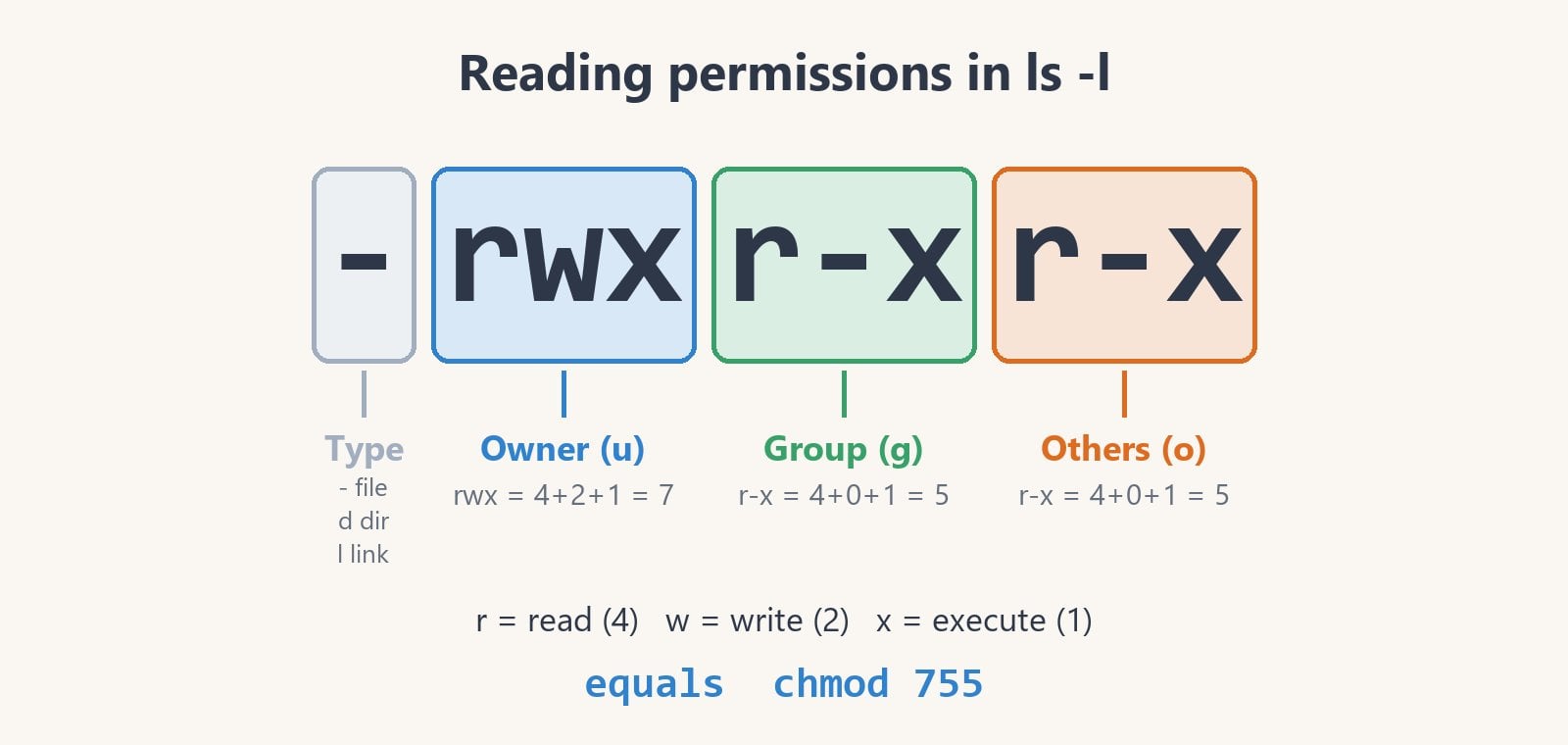
The most compact overview comes from stat, which shows permissions, number, owner and group on one line:
stat -c "%A %a %U %G %n" hello.sh projects-rw-r--r-- 644 pi pi hello.sh
drwxr-xr-x 755 pi pi projectsNew files get 644, new folders 755. That is set by the umask, which is 0022 on Raspberry Pi OS: write permission is removed for the group and for others. A new file is never executable – which is why your freshly written script won’t start.
Make a script executable with chmod +x
Without execute permission, the shell refuses to start a script:
./hello.shbash: ./hello.sh: Permission deniedchmod +x adds the execute permission, and the script runs:
chmod +x hello.sh
ls -l hello.sh
./hello.sh
-rwxr-xr-x 1 pi pi 32 Sep 25 19:20 hello.sh
Hello from the Pibash hello.sh also runs the script without execute permission, because then bash is the program and only reads the script. For ./hello.sh to know what to run it with, the first line needs a shebang such as #!/bin/bash or #!/usr/bin/env python3. If the script should start automatically later, our guide to autostart on the Raspberry Pi covers systemd and labwc, and for scheduled runs see cron jobs on the Raspberry Pi.
Changing permissions with chmod: letters or numbers
chmod understands two notations. The symbolic one changes individual permissions and leaves the rest alone, the numeric one sets all permissions at once.
Symbolic: u, g, o and +, -, =
First comes who: u (owner, “user”), g (group), o (others) or a (all). Then + to add, - to remove or = to set exactly, and finally the permissions. Separate several changes with a comma:
chmod u+x script.sh          # only the owner may execute
chmod go-w file.txt          # remove write permission for group and others
chmod u=rw,g=r,o= notes.txt  # set exactly rw-r-----
chmod +x without a letter in front applies to all three, as far as the umask allows – which is why the example above showed rwxr-xr-x.
Numeric: 644, 755, 600
Each of the three digits is the sum of r = 4, w = 2 and x = 1, in the order owner, group, others. rwx is 7, r-x 5, rw- 6, r-- 4. You will rarely need more than these:
| Number | Permissions | typical for |
|---|---|---|
| 644 | rw-r--r-- | regular files, config files |
| 755 | rwxr-xr-x | folders, scripts, programs |
| 600 | rw------- | private keys, files with passwords or tokens |
| 700 | rwx------ | private folders such as ~/.ssh |
| 775 / 664 | rwxrwxr-x / rw-rw-r-- | folders and files shared by a group |
chmod calculator
Tick the boxes or type a three-digit number – the calculator shows the matching ls -l string and the ready-to-use command:
| read (r) | write (w) | execute (x) | |
|---|---|---|---|
| Owner (u) | |||
| Group (g) | |||
| Others (o) |
ls -l shows: -rwxr-xr-x
Command: chmod 755 file
To see what chmod actually changed, add -c. It reports real changes only, while -v reports every file, including unchanged ones:
chmod -c 600 notes.txtmode of 'notes.txt' changed from 0644 (rw-r--r--) to 0600 (rw-------)Why chmod 777 is not a fix
Sooner or later every forum thread about permissions suggests chmod -R 777. The error goes away, but now every user and every service on the Pi may change and run those files – including a web server with a security hole. Some programs even refuse to work with permissions that open, SSH for example with private keys. Instead, find out who needs access and give exactly that user or their group the permission.
Folder permissions: r without x is not enough
On directories the letters mean something different than on files. This is what it looks like for another user, here the web server account www-data:
- Only
r:lsshows the file names, butcat box/a.txtfails with “Permission denied”. The owner themselves sees only question marks (-?????????) when runningls -lon such a folder, andcdfails. - Only
x:lsfails with “cannot open directory ‘box’”, but anyone who knows the file name can still read the file. randx: listing and opening both work – the usual 755.
Worth remembering: whether you may delete a file is decided by the folder, not by the file. You can delete a read-only file (444) in your own folder with rm -f without any problem. The other way round, a file with 666 in a folder owned by root can be written to, but not deleted:
rm: cannot remove '/opt/other/file.txt': Permission deniedchmod -R: the capital X
This is why chmod -R 644 folder goes wrong. It also removes the x from every subfolder and locks you out of your own directory tree – chmod itself stops halfway:
chmod: cannot access 'folder/sub': Permission deniedThe fix is the capital X: it sets execute permission only on folders and on files that are already executable. For “folders 755, files 644” in one go:
chmod -R u+rwX,go+rX,go-w folderIf you want it explicitly separated, use find:
find folder -type d -exec chmod 755 {} +
find folder -type f -exec chmod 644 {} +
Changing the owner with chown
chown sets owner and group in one step, separated by a colon. -R applies it to a folder and everything inside:
sudo chown pi file.txt            # owner only
sudo chown pi:pi file.txt         # owner and group
sudo chown :www-data file.txt     # group only (like chgrp www-data)
sudo chown -R pi:pi folder        # recursive
Replace pi with your user name – whoami tells you what it is. Unlike chmod, chown almost always needs sudo: a regular user may not give files away, not even their own. Without sudo you get:
chown: changing ownership of 'data': Operation not permitted“Operation not permitted” is a different message from “Permission denied”: the first means only root may do this, the second means the permissions of the file or folder forbid the access.
Typical cases on the Raspberry Pi
Folder created with sudo – now root owns it
If you type sudo mkdir or sudo nano in your home directory out of habit, you create files that belong to root. Later, every attempt to write without sudo fails:
ls -ld data; ls -l datadrwxr-xr-x 2 root root 4096 Sep 25 19:20 data
-rw-r--r-- 1 root root 0 Sep 25 19:20 log.txttouch: cannot touch 'data/new.txt': Permission deniedOne chown gives you the folder and its contents back:
sudo chown -R $USER:$USER ~/dataThe shell replaces $USER with your user name. Only do this inside your home directory – system folders like /etc or /usr belong to root for good reason.
sudo echo into a system file fails
This command looks right and still returns “Permission denied”:
sudo echo "dtparam=audio=on" > /etc/test.confThe redirect > is handled by your own shell before sudo even starts – and your shell runs without root. sudo only applies to echo, which needs no permissions at all. Use tee instead, which runs with sudo itself and writes the file. With -a it appends, without it overwrites:
echo "dtparam=audio=on" | sudo tee -a /etc/test.confThe web server can’t write
On Raspberry Pi OS, Apache and Nginx run as the user www-data, but /var/www/html belongs to root. If your web app uploads files or writes a cache, that fails. Give the web server only the folder it really needs to write to, not the whole directory:
sudo mkdir -p /var/www/html/uploads
sudo chown -R www-data:www-data /var/www/html/uploads
sudo find /var/www/html/uploads -type d -exec chmod 755 {} +
sudo find /var/www/html/uploads -type f -exec chmod 644 {} +
If you also want to edit files in that folder yourself, that is not enough, because it now belongs to www-data, not to you. Join the www-data group and set the folder to 2775. The leading 2 (setgid) makes new files belong to the www-data group automatically. For the group to be able to write them too, your umask must be 002 while you work there – with the default umask 022 new files get 644 and the web server can no longer change them. How to set up Apache, PHP and MariaDB in the first place is covered in Raspberry Pi web server with Apache, PHP and MariaDB.
Serial port, GPIO, Docker: groups instead of chmod
Device files such as /dev/ttyUSB0, /dev/gpiochip0 or the Docker socket belong to root and a group. Members of that group get access. Running chmod on the device file does not help, because it is recreated the next time you plug the device in or reboot.
On Raspberry Pi OS the first user is already in the important groups out of the box, including dialout (serial ports), gpio, i2c, spi, video and audio. So the error mostly hits additional users, services with their own account – and Docker, because the docker group is not among them. id shows which groups you have. To join one:
sudo usermod -aG dialout $USERThe -a is essential: without it, usermod -G replaces all existing groups. And the new membership only applies from your next login. In the running session access is still denied although you are already added – you can see it in the difference between groups (current session) and groups $USER (user database). On our test system we added a test user test to an example group sensor:
$ groups
test adm cdrom sudo dip plugdev users
$ groups test
test : test adm cdrom sudo dip plugdev users sensor
So log out and back in once (for SSH, reconnect) or reboot the Pi. For a single command without logging in again there is sg group -c "command". Using Docker without sudo is covered in Install Docker on the Raspberry Pi, the serial port in Enable UART on the Raspberry Pi.
USB stick: chmod changes nothing
USB sticks and camera SD cards are usually formatted with FAT32 or exFAT. These file systems have no Linux permissions; Linux sets owner and permissions for all files together when mounting. The Pi’s own system card is not affected, Raspberry Pi OS uses ext4 there – which card suits it best is covered in The best SD card for the Raspberry Pi. chmod reports no error there, but changes nothing. With a stick that root mounted using mount, it looks like this:
sudo chmod 600 /mnt/stick/test.txt
ls -l /mnt/stick
sudo chown pi /mnt/stick/test.txt
-rwxr-xr-x 1 root root 0 Sep 25 19:23 test.txt
chown: changing ownership of '/mnt/stick/test.txt': Operation not permittedThe fix is mount options: uid and gid set the owner, umask the permissions. id shows your numbers, the first user has 1000:
sudo mount -o uid=1000,gid=1000,umask=022 /dev/sda1 /mnt/stickAfter that, all files on the stick belong to you. For a permanent entry in /etc/fstab the same options go into the fourth column; Set up a USB hard drive on the Raspberry Pi shows how. If you plug the stick in on the desktop, Raspberry Pi OS usually mounts it with your user as the owner already. If the drive stays connected to the Pi permanently, format it with ext4 – then normal Linux permissions apply again. For permanent use on a Pi 5, an NVMe SSD is the better choice than a stick; suitable SSDs and M.2 HATs are in our NVMe buying guide for the Raspberry Pi 5.
SSH key with permissions that are too open
Here it is the other way round: SSH rejects a private key that others can read. This often happens after copying the key from a USB stick or from Windows:
@@@@@@@@@@@@@@@@@@@@@@@@@@@@@@@@@@@@@@@@@@@@@@@@@@@@@@@@@@@
@         WARNING: UNPROTECTED PRIVATE KEY FILE!          @
@@@@@@@@@@@@@@@@@@@@@@@@@@@@@@@@@@@@@@@@@@@@@@@@@@@@@@@@@@@
Permissions 0644 for '/home/pi/.ssh/id_ed25519' are too open.
It is required that your private key files are NOT accessible by others.
This private key will be ignored.
Load key "/home/pi/.ssh/id_ed25519": bad permissions
The key must be readable only by you, and the folder accessible only by you:
chmod 700 ~/.ssh
chmod 600 ~/.ssh/id_ed25519
chmod 600 ~/.ssh/authorized_keys
Special permissions: s and t
Now and then ls -l shows an s or t instead of an x. These are special permissions you rarely set yourself, but should recognise:
| Shown as | Number | Name | Effect | Example |
|---|---|---|---|---|
rwsr-xr-x | 4755 | setuid | program runs with the owner’s permissions | /usr/bin/sudo, /usr/bin/passwd |
rwxrwsr-x | 2775 | setgid | new files in the folder inherit its group | shared folders |
rwxrwxrwt | 1777 | sticky bit | anyone may create files, but only delete their own | /tmp |
Setting setuid on your own scripts is a bad idea, and on shell scripts Linux ignores it anyway. If a script needs root, run it with sudo or as a systemd service.
In short: read first, then change
Whenever you see “Permission denied”, run ls -l on the file and on the folder above it first. If the permissions are wrong, chmod fixes it; if the wrong user owns the file, chown does; for device files and Docker, group membership is the right way. On FAT or exFAT USB sticks only the mount options decide.
How we tested
All commands and outputs come from Debian 13 with GNU coreutils 9.7 under WSL – the same base the current Raspberry Pi OS is built on. chmod, chown, the umask and the error messages behave identically there, so the examples work the same on the Pi. In the outputs we replaced the user name with pi and translated the file names. We checked the first user’s group list and the coreutils version in the current Raspberry Pi OS image from 15 September 2026; it matches the build script pi-gen. All options of chmod and chown are described in the GNU coreutils manual.
All commands for users and permissions in short form are in the Raspberry Pi commands cheat sheet; more terminal topics in detail are checking and freeing up disk space and wget and curl. If you are just getting started with the Pi, our Raspberry Pi 5 starter kit comparison shows what you need besides the board.
Frequently asked questions about chmod and chown
chmod changes the permissions of a file, meaning who may read, write or execute it. chown changes who owns the file, meaning owner and group. The owner of a file can run chmod on it themselves, chown almost always needs sudo.
Run chmod +x script.sh to add execute permission, then start it with ./script.sh. The first line should contain a shebang such as #!/bin/bash. Without execute permission you can still run the script with bash script.sh.
Each digit is the sum of read (4), write (2) and execute (1) for owner, group and others. 755 means rwxr-xr-x: the owner may do everything, everyone else may read and execute – typical for folders and scripts. 644 means rw-r--r--: the owner may read and write, everyone else may only read – typical for regular files.
777 allows every user and every service on the Pi to change and run the files. The error message disappears, but the actual cause remains. It is better to give exactly the user or group that needs access that permission, using chown or a group membership.
A new group membership added with usermod -aG only applies from the next login. Log out and back in, reconnect via SSH or reboot the Pi. groups shows the groups of the current session, groups followed by your user name shows the ones stored in the user database.
FAT32 and exFAT don’t store Linux permissions. Linux sets owner and permissions for all files when mounting; chmod reports no error but changes nothing. Mount the stick with the options uid=1000,gid=1000,umask=022, or format it with ext4 if it stays connected to the Pi permanently.