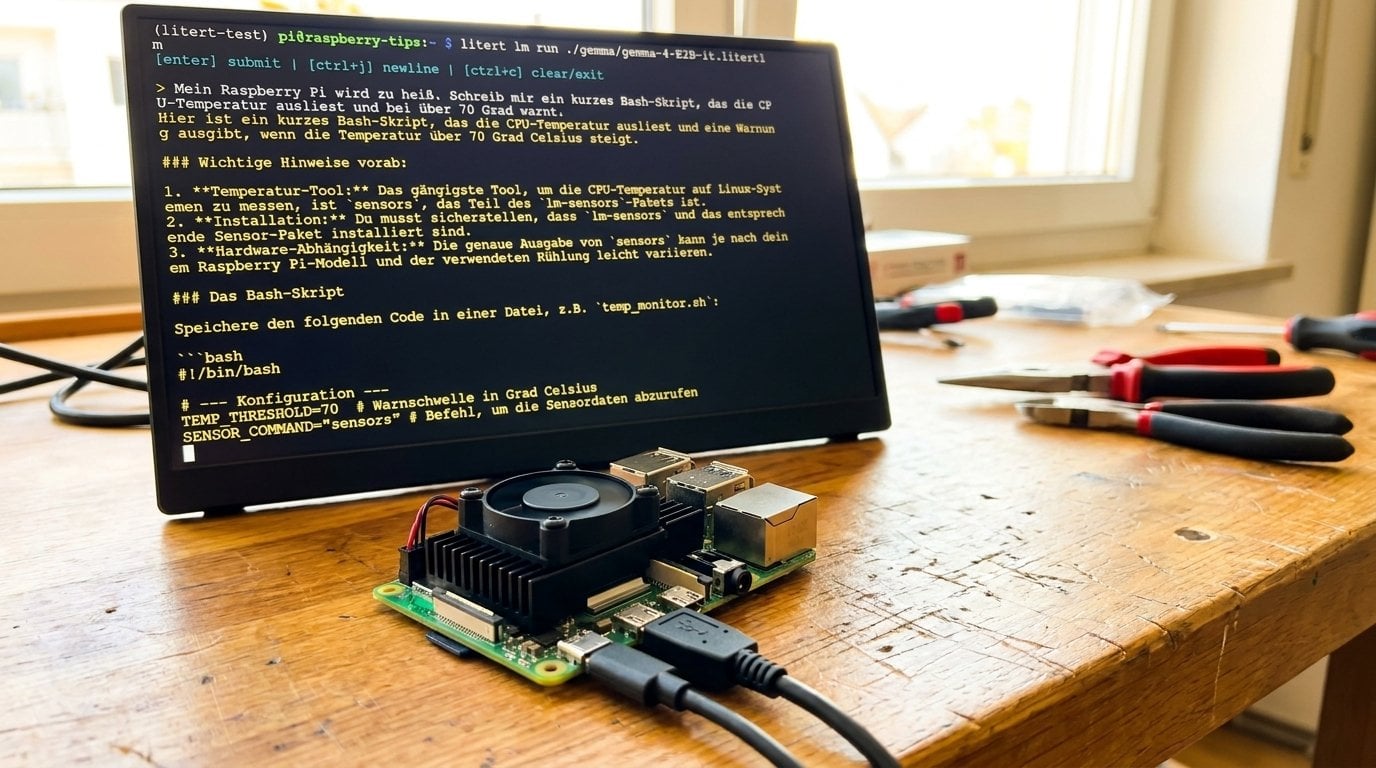
Run Gemma 4 Locally on Raspberry Pi 5: LiteRT Hands-On
Running a language model like Gemma 4 completely offline on a Raspberry Pi 5 is no longer a party trick – what’s new is that Raspberry Pi itself now recommends a way to do it. On August 11, 2026, Google AI Edge and Raspberry Pi published a joint announcement: Google’s LiteRT runtime is now optimized for the Pi 5, including language models from the Gemma family and experimental GPU acceleration.
I wanted to know what survives contact with reality: how the installation actually goes, how fast Gemma really responds on the Pi, how much RAM the whole thing eats – and whether it’s worth switching from Ollama. In this guide you’ll set up LiteRT step by step and get your first model answering locally.
In short
On the 4 GB Pi 5, LiteRT is the way to run Gemma 4 E2B locally – Ollama runs out of memory there with the same model. On the 8 GB Pi or with smaller models, Ollama remains the easier route to a chatbot.
- You need: a Pi 5, 64-bit Raspberry Pi OS, active cooling and about 10 GB of free storage – no AI HAT
- Installation: the Python package
litert-cliviauv; the CLI fetches the language-model components itself on first use - Strengths: low memory footprint, image recognition and language model with the same tool
- Weaknesses: smaller model selection than Ollama, GPU acceleration still slower than the CPU
LiteRT is Google’s on-device runtime for AI models and the direct successor to TensorFlow Lite. It runs classic ML models and language models locally on CPU or GPU – officially optimized for the Raspberry Pi 5 since August 2026, including the LLM layer LiteRT-LM. Free and open source.
What Google and Raspberry Pi actually announced
The announcement appeared simultaneously on the Raspberry Pi news blog and Google’s developer blog – joint appearances like this are rare. The gist: Google has optimized LiteRT specifically for the Pi 5’s hardware, and it delivers three things at once.
First, language models. Through an intermediate layer called LiteRT-LM, models from the Gemma family run directly on the Pi – from Gemma 3 270M for simple tasks like text classification up to Gemma 4 E4B, which Google calls the sweet spot between size and capability. For this guide I use the smaller Gemma 4 E2B: it’s tuned for tight memory and it’s the example model in the official guide.
Second, the GPU. The Pi 5’s VideoCore VII can now be used for inference. This is made possible by experimental WebGPU support in the open Vulkan driver V3DV, which Igalia contributed to Mesa as part of its long-standing collaboration with Raspberry Pi.
Third, a lean command-line tool that downloads, runs, benchmarks and converts models – and only fetches the components you actually use.
The official benchmark numbers
Google published numbers for the Pi 5 with 8 GB of RAM, measured with four threads at 1,024 input and 256 output tokens:
| Model | Runtime | Prefill (tokens/s) | Decode (tokens/s) | Peak RAM |
|---|---|---|---|---|
| Gemma 4 E2B | LiteRT-LM | 99 | 9 | 1,432 MB |
| Gemma 4 E2B | llama.cpp | 24 | 4 | 4,406 MB |
That looks like a landslide – four times the prefill speed at a third of the memory footprint. Two details are worth knowing, though. First, Google is comparing a model in QAT quantization (quantization-aware training – the model is prepared for the reduced number format during training and loses less quality) against a conventionally post-quantized Q4_0 variant in llama.cpp. Second, the appendix of the very same announcement lists different llama.cpp numbers: 58 tokens/s prefill and 7 decode instead of 24 and 4. Google doesn’t explain which set is right. Only the memory advantage is clear-cut – it’s identical in both tables. On speed, LiteRT-LM is ahead, but possibly by a much smaller margin than the main table suggests. Which is exactly why I ran my own measurements further down.
One more number stands out: for the installation including language-model support, Google quotes roughly a 25 MB download versus about 1.44 GB for Ollama. The CLI is just a thin Python shell that pulls in runtime components on demand – Ollama, by contrast, ships every accelerator driver in one bundle, whether your device can use them or not.
TensorFlow Lite became LiteRT
If the name means nothing to you but the concept feels familiar: LiteRT is the renamed and further developed version of TensorFlow Lite. If you built object detection on the Pi with TensorFlow Lite years ago, this is its direct successor – the familiar .tflite model files still run. What’s new above all is the ability to run large language models.
Sources
All numbers in this section come from the official publications of August 11 to 13, 2026:
- Raspberry Pi: Mastering edge AI on Raspberry Pi with LiteRT and Gemma – analysis and all benchmark tables
- Raspberry Pi: Get started with LiteRT on Raspberry Pi – the official step-by-step guide
- Google: Mastering Edge AI on Raspberry Pi with LiteRT and Gemma – the simultaneously published developer-blog version
- Igalia: Bringing Edge AI to the Raspberry Pi GPU – background on the WebGPU support in the Mesa V3DV driver
What you need
Measured on August 19 and 20, 2026 with LiteRT-LM 0.17 on Raspberry Pi OS (64-bit); installation last checked on October 14, 2026 with litert-cli 0.2.1. LiteRT is evolving quickly, so details may change.
The list is short – LiteRT runs without any extra hardware, so you need neither an AI HAT nor an accelerator stick:
- a Raspberry Pi 5 – Google officially tests with the 8 GB variant*, but my entire test run happened on the considerably cheaper Pi 5 with 4 GB*, and it turned out to be enough
- Raspberry Pi OS in the 64-bit version – there are no LiteRT packages for 32-bit ARM, so the Pi has to run
aarch64 - at least 10 GB of free storage – the language model alone brings 2.59 GB, and the first launch adds roughly another 1 GB of compilation cache; a fast microSD card* will do, an SSD is more comfortable
- active cooling, for example the official Active Cooler* – the Pi runs on all four cores continuously while generating text
- a beefy power supply – under full load the official 27 W USB-C power supply* is a must, otherwise the Pi throttles
- a bit of patience on first launch – how long the 2.59 GB download takes depends entirely on your internet connection; with a Hugging Face token it’s faster
An NVMe SSD* – attached to the Pi 5 via the official M.2 HAT* – is not a must, but you will notice it: the model is read from disk on every start, 2.6 GB where every bit of read speed pays off directly. My test system ran from NVMe, where the benchmark reported an init time of under a second; from an SD card, expect the model load to take considerably more patience.
Before you start, quickly confirm your system meets the requirements:
uname -m
cat /etc/os-release
free -h
df -h ~
uname -m must return aarch64. If it says armv7l, you’re still running a 32-bit system – reflash the card with the 64-bit version of Raspberry Pi OS. Then bring the system up to date:
sudo apt update
sudo apt full-upgrade -y
Installing LiteRT on the Raspberry Pi
LiteRT doesn’t come via apt but as a Python package. Google recommends uv for this – a very fast package manager that will also fetch the matching Python version if needed.
Step 1: Install uv
curl -LsSf https://astral.sh/uv/install.sh | sh
source $HOME/.local/bin/env
uv --version
The second line matters more than it looks: it makes uv known to the running shell. Skip it and the Pi will greet you with “command not found” in the next step.

Step 2: Create a working directory and virtual environment
mkdir -p ~/litert-test && cd ~/litert-test
uv venv --clear --python=3.13 --seed
source .venv/bin/activate
Make sure you really do this in its own directory: --clear silently deletes an existing .venv in the current folder. If Python 3.13 is missing on your system, uv downloads it itself – no need to touch the system Python.
If everything worked, your prompt now starts with the environment’s name in parentheses. Which brings us straight to the most common trap: after every reboot and in every new SSH window you have to activate the environment again, otherwise the shell won’t know the litert command:
source ~/litert-test/.venv/bin/activateStep 3: Install the LiteRT CLI
uv pip install litert-cli
litert --help
A quick note, because the two official pages contradict each other at this point: Raspberry Pi’s step-by-step guide installs litert-cli-nightly, the development build that’s rebuilt every day. The overview article names the stable litert-cli. I now recommend the stable package: since version 0.2 it ships a current language-model layer (LiteRT-LM 0.17, the same generation my measurements below were taken with), and it doesn’t change overnight. If you’d rather follow the official guide, install litert-cli-nightly – the commands in this article work with both. Just don’t mix the two lines in the same environment.
If uv gets stuck resolving dependencies, explicitly setting the package index usually helps:
export UV_INDEX_URL=https://pypi.org/simpleThe base installation is deliberately small: the CLI is only a thin shell and fetches the actual runtime modules on demand, once you actually use them. Google quotes around 25 MB of download for the CLI including language-model support. It wasn’t quite that lean for me: the language-model module that arrives on the first call alone weighed a good 44 MB. Compared to Ollama’s roughly 1.44 GB, the difference is still huge.
Running Gemma 4 locally on the Raspberry Pi
Now for the fun part. Language models in LiteRT run through their own layer called LiteRT-LM, which you talk to via litert lm. You no longer have to install a package for it by hand: on the first litert lm call, the CLI reports “Initializing ‘lm’ components for the first time” and pulls the matching modules into your virtual environment itself. That takes a few seconds and only happens once.
First: do you need a Hugging Face token?
The model comes from Hugging Face, and the official guide treats an access token as a prerequisite without explaining why. So I deliberately tried without one first – and indeed: the download works without a token, because the Gemma repository in the LiteRT collection is not gated. You need neither an account nor to accept any model terms to get going.
Without signing in, though, Hugging Face applies stricter rate limits and a throttled transfer rate. With a 2.59 GB file, you’ll notice – and if you plan to try several models, all the more. The token isn’t mandatory, but it is worth having. If you want to use one, set it now, before the first download.
Here’s how to get one: create an account on huggingface.co, generate a new token of type Read under “Access Tokens”, and set it in your shell:
export HF_TOKEN=your_token_hereNote that I deliberately deviate from the official guide here: it sets HUGGING_FACE_HUB_TOKEN. The litert lm command, however, only reads HF_TOKEN (or the --huggingface-token option) – it would simply ignore the old variable when downloading the model. A small security note on the side: the token now sits in plain text in your shell history. If you share the Pi or take screenshots, remove it from ~/.bash_history afterwards.
The first run
The model download takes a while – and if your SSH connection drops in the meantime, the download dies with it. With
tmux it keeps running on the Pi, whatever the network does:sudo apt install -y tmuxtmux new -s litertsource ~/litert-test/.venv/bin/activateDon’t forget the third line: a new tmux session is like a new SSH window, so the virtual environment has to be activated again inside it. You can deliberately detach with Ctrl+B followed by D. After your next login, reclaim the session with
tmux attach -t litert – along with everything that kept running in the meantime.
Then pick a model, add a prompt, done:
litert lm run \
  --from-huggingface-repo=litert-community/gemma-4-E2B-it-litert-lm \
  gemma-4-E2B-it.litertlm \
  --prompt="What is the capital of France?"
On the first call, LiteRT fetches the 2.59 GB model file and stores it under ~/.litert-lm/cache/huggingface/. From the second call on, the CLI reports “Using cached model” and starts without downloading again.

Leave out --prompt and you land in an interactive chat. The model then stays loaded between questions, and you can type away freely. You end the chat with Ctrl+C – the CLI shows the keyboard shortcuts at startup.

Alternative: download the model into your own folder
If you want to decide where the model file lives – on a second drive or in your project folder, say – use the sibling command litert download and then start the model via its local path. The file filter --file is essential here:
litert download litert-community/gemma-4-E2B-it-litert-lm --file "gemma-4-E2B-it.litertlm" --output gemma
litert lm run ./gemma/gemma-4-E2B-it.litertlm --prompt="What is the capital of France?"--file you download the entire repositoryLeave out the file filter and
litert download grabs every variant of the model – around 27 GB in total. On a 32 GB card, that’s the end of the road rather quickly.
The reason is actually practical: Google stores nine additional builds of the same model in the same repository, each tailored to different hardware (as of November 2026).
| File | Size | Meant for |
|---|---|---|
gemma-4-E2B-it.litertlm | 2.59 GB | CPU – this is the file for the Raspberry Pi |
gemma-4-E2B-it-gpu.litertlm | 2.34 GB | GPU execution |
gemma-4-E2B-it-web.litertlm / .task | ~2 GB each | running in the browser |
…_Qualcomm_QCS8275 | 2.72 GB | Qualcomm NPU (QCS8275) |
…_NPU_Uncompiled | 2.61 GB | NPU, not precompiled |
…_Google_Tensor_G5 / …_G6 | 3.21 / 3.45 GB | the Pixel line’s NPU |
…_intel_LNL / …_intel_PTL | ~2.95 GB each | Intel NPUs |
For the Pi, only the first row matters. Everything else is ballast – which is exactly why the --file filter belongs in the command. The --from-huggingface-repo call from the previous section gets this right on its own and only fetches the one named file.
Whichever route you take: bring a little patience for the very first start. LiteRT compiles the model once for your processor and stores the result as .xnnpack_cache files next to the model file – a good 1 GB extra in my case, growing the folder from 2.5 to 3.5 GB. In return, this step is skipped on all subsequent starts. Plan the disk space accordingly.
How much RAM does all this need?
Google quotes a peak usage of 1,432 MB for Gemma 4 E2B – measured on a Pi 5 with 8 GB. Which leaves exactly the question none of the official announcements answers: is less enough? My test device is the Pi 5 with 4 GB – and the answer is a clear yes. While the model was writing a longer answer, used memory sat at 1,572 MB out of 4,049, with a good 2.4 GB still available. Most importantly: swap stayed at zero for the entire generation. The system never starts paging – which is where it would become unusably slow – so Gemma 4 E2B and the 4 GB model are a comfortable fit.
If you want to watch this yourself, open a second SSH window and keep an eye on memory while the model answers:
watch -n1 free -m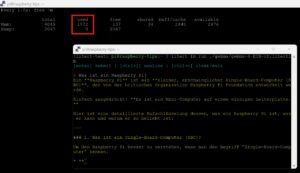
If a run dies without a word, the kernel usually stepped in. You’ll see it here:
dmesg | grep -i oomMeasuring the speed
For numbers you can compare against Google’s, the CLI ships its own benchmark:
litert lm benchmark ~/.litert-lm/cache/huggingface/litert-community/gemma-4-E2B-it-litert-lm/gemma-4-E2B-it.litertlmIf you downloaded the model into your own folder with litert download, use that path instead, for example ./gemma/gemma-4-E2B-it.litertlm. You get two values: prefill is how fast the model digests your input, decode is how fast it writes the answer. The second one is what you actually feel while watching. My results:

In numbers, so you can put your own runs into perspective (a single measured run after warm-up, not a median of several passes, August 2026):
| Value | My measurement (Pi 5, 4 GB) | Google’s reference (Pi 5, 8 GB) |
|---|---|---|
| Prefill | 96.46 tokens/s | 99 tokens/s |
| Decode | 7.74 tokens/s | 9 tokens/s |
| Init time | 0.74 s | – |
| Time to first token | 2.78 s | – |
One small catch for the direct comparison: the benchmark defaults to 256 prefill tokens, while Google measured with 1,024. So these aren’t exactly the same experiment – but the ballpark matches. And the remarkable part: my numbers come from the 4 GB model and still land almost level with Google’s 8 GB reference. More RAM doesn’t make the model faster as long as it fits comfortably. As for what roughly 8 tokens per second of output means in practice: the model writes about as fast as you read. Perfectly usable for a chat; for long texts, bring patience.
And how useful is it in everyday life?
Benchmarks are one thing – I wanted to know how the model handles a real question, so I gave it a typical maker problem: “My Raspberry Pi is running too hot. Write me a short bash script that reads the CPU temperature and warns above 70 degrees.”

The answer looked impressive at first glance: cleanly structured, fluent, complete with installation instructions, a cron job and even a systemd hint. On a generic Linux box I would have nodded approvingly. Except: on a Raspberry Pi, the delivered script doesn’t work. It relies on lm-sensors and greps the output for “Core” entries – that’s the world of desktop processors. On the Pi the sensor is called cpu_thermal, no “Core” entry exists, so the script would forever run into its own error message. On top of that, a classic bash blunder: the -gt comparison only handles integers and would choke on a temperature like “45.6”.
For completeness, here’s how it’s actually done on the Pi – no extra packages needed:
#!/bin/bash
TEMP=$(( $(cat /sys/class/thermal/thermal_zone0/temp) / 1000 ))
if [ "$TEMP" -gt 70 ]; then
  echo "Warning: CPU at ${TEMP} degrees - check your cooling!"
fi
The takeaway from this little reality check: Gemma 4 E2B is a linguistically strong generalist, but no device specialist – entirely expected for a model of this size class. For everyday tasks like summarizing, translating or explaining, it’s surprisingly capable on the Pi; for technical specifics, double-check its answers, as with any language model. The form is perfect, the facts aren’t always.
Not just language models: classifying images
LiteRT can also do everything TensorFlow Lite used to be picked for. An image-recognition model is set up in two commands – any JPEG photo works as a test image, for example one you copy to your home directory as test.jpg via scp:
litert download litert-community/efficientnet_b1 --output efficientnet
litert run efficientnet/efficientnet_b1.tflite --input ~/test.jpg
You don’t need the --file filter from earlier here, by the way: the EfficientNet repository totals only about 60 MB, so it hardly matters if all variants come along. In return you get the five most likely matches with a score. With my test image – a plain coffee mug – it looked like this: coffee mug clearly in front (score 7.84), followed by cup, espresso, eggnog and teapot. The inference itself took 88 milliseconds. As a bonus, the output reveals the input size: EfficientNet-B1 works internally at 240 × 240 pixels – your photo gets scaled down considerably, fine details don’t matter.

The same route gets you object detection (YOLOX), speech recognition (Moonshine) or models for semantic search. If you want to browse what else is available: the matching models are collected in the LiteRT community on Hugging Face.
GPU instead of CPU – is it worth it on the Pi?
Since August 2026, LiteRT can also use the GPU on the Pi 5. It relies on the experimental WebGPU support in the V3DV Vulkan driver mentioned earlier. You activate it via an environment variable – prefixed like this, it only applies to this one call, so there’s nothing to reset afterwards:
V3D_WEBGPU_OVERRIDE=1 litert run efficientnet/efficientnet_b1.tflite --input ~/test.jpg --gpuAnd now for the expectation management that Raspberry Pi itself delivers in the official guide: the GPU is slower than the CPU here. That’s not a mistake in your setup but the current state of the experimental driver. In Google’s measurements, EfficientNet-Lite0 takes 29.15 milliseconds on the CPU and 87.85 on the GPU – a good three times as long. For object detection with YOLO26n it’s 101.26 versus 375.73 milliseconds.
The point of it is sound nonetheless: the Pi 5 has four cores, and when a language model is crunching on them, you don’t want camera analysis piled on top. That’s exactly how Google’s robot demo works – object detection on the GPU, language model on the CPU. It’s about dividing labor, not about more speed. My own measurement confirms the picture: the same classification that takes 88 milliseconds on the CPU takes 170 on the GPU – about twice as long. The results are identical, only the scores differ in the second decimal place. One message at GPU startup is safe to ignore: Failed to load OpenCL library with dlopen is just an information line – LiteRT tries OpenCL first and then lands on the Vulkan driver as intended.
If the call fails with --gpu, specify both targets – the CLI then tries them in order:
litert run efficientnet/efficientnet_b1.tflite --input ~/test.jpg --cpu --gpuWhen something gets stuck
LiteRT is a young project, and accordingly it creaks in a few places. These moves solved most problems for me:
| Problem | Solution |
|---|---|
litert: command not found | Virtual environment not active – source ~/litert-test/.venv/bin/activate |
| uv gets stuck resolving | export UV_INDEX_URL=https://pypi.org/simple |
| Download throttled despite a token | The variable is HF_TOKEN, not HUGGING_FACE_HUB_TOKEN – check with echo $HF_TOKEN |
| Unclear error message | Prefix with LITERT_VERBOSE=1 and the log gets talkative |
Failed to build flatbuffer model | Sounds like a broken model, but usually just means the file is missing or empty – check path and file size (ls -lh) |
| Weird states after aborts | litert clean empties the CLI’s working cache under ~/.cache/litert-cli; downloaded language models in ~/.litert-lm and your own --output folders stay untouched |
One more small misdirection: litert list reports “No managed models found” – even though the model has long been sitting on your card. The command only knows models in LiteRT’s own managed cache; whatever you downloaded into your own folder with --output or via litert lm run won’t show up there. If you want to know where your gigabytes went, a classic du -sh ~/.litert-lm ~/.cache ~/litert-test/gemma helps instead.
As a general rule: if the CLI leaves you puzzled with a message, read it skeptically and check the simple things first – active environment, path, file size. A message that sounds like data corruption often just means a file is missing.
LiteRT or Ollama – which one, when?
If you’ve been running local language models on the Pi so far, chances are it was through Ollama. So the question is fair: switch or stay?
The fairest comparison is the same model in the same quantization, since Ollama also carries Gemma 4 E2B in the QAT build (gemma4:e2b-it-qat). On the 4 GB Pi 5, however, that comparison doesn’t happen at all – and that is the actual takeaway:
$ ollama run gemma4:e2b-it-qat "What is the capital of France?"
Error: 500 Internal Server Error: llama-server process has terminated: signal: killed
Ollama couldn’t get the very same model running on the 4 GB Pi (as of my test in August 2026). The kernel killed the loading process because memory ran out – it’s right there in the log, including the requested amount:
$ dmesg | grep -i oom
Out of memory: Killed process 10193 (llama-server) total-vm:4506384kB, ...
The process wanted around 4.5 GB – almost exactly matching Google’s llama.cpp measurement of 4,406 MB, and simply more than the 4 GB Pi owns. The 2 GB of swap didn’t save it either: in my test the loading process was killed twice in a row. To put it in numbers:
| Criterion (Gemma 4 E2B QAT, Pi 5 with 4 GB) | LiteRT-LM | Ollama |
|---|---|---|
| Does the model run? | Yes – 7.74 tokens/s output | No – killed by the kernel (OOM) |
| RAM while running | 1,572 MB, swap stays at 0 | requests ~4.5 GB |
| Model on disk | 2.59 GB (+ ~1 GB compile cache) | 4.3 GB |
| Runtime (download according to Google) | ~25 MB | ~1.44 GB |
Staying fair, though: on a Pi 5 with 8 GB, the same model runs under Ollama just fine – there, the comparison is a question of speed and convenience. And with smaller models like Gemma 3 1B, Ollama has no problem even on the 4 GB device. But exactly where things get tight, the architectural difference shows: LiteRT-LM evidently copes far better with Gemma 4 E2B’s memory-saving traits – the offloaded per-layer embeddings.
Regardless of the measurements, the two mainly differ in character, and that matters more for the decision than a few tokens per second:
- Ollama is the comfortable everyday route. Huge model library, one command per model, runs as a background service and can be wrapped in Open WebUI for an interface that feels like ChatGPT. For a Pi that acts as a small home server anyway, it remains the obvious choice.
- LiteRT is the lean construction kit. It shines where memory is tight, where you build a model firmly into your own application, or where camera and audio recognition should run alongside the language model. Having image recognition, speech recognition and the LLM all on the same runtime saves a pile of dependencies in a project.
The line is blurring, though: LiteRT-LM now ships its own server, litert-lm serve, which offers an OpenAI-compatible API. In principle, that would let you hook up front ends like Open WebUI too.
One drop of bitterness remains: Ollama has the bigger model selection. The LiteRT collection on Hugging Face does hold Qwen, Phi, SmolLM and even a distilled DeepSeek-R1 next to Gemma, but models first have to be converted to the LiteRT format. Whatever isn’t there, you’ll have to convert yourself.
What comes next
The most exciting sentence for makers sits at the very end of the announcements: LiteRT and the Gemma models are set to support the Hailo accelerators. That would offload inference to the AI HAT+ 2 with the Hailo-10H – using the very same commands you learned above. As of October 2026 there’s still no date, so there’s nothing to test yet either. As soon as it lands, I’ll add the measurements here.
If you want to see where all this leads when taken to its conclusion: Google published the Gemma Translator, a sample project that turns a Pi 5 into an interpreter working entirely offline. And the robot demo used to promote the announcement divides its work cleanly: object detection on the GPU, speech recognition and language model on the CPU. That’s exactly the kind of split LiteRT is built for – if all you want is a chatbot on a Pi with 8 GB, Ollama gets you there faster.
Verdict
LiteRT is the first local-LLM runtime that Raspberry Pi itself actively recommends – and it shows. The installation is done in ten minutes, the memory appetite is markedly lower than the well-known alternatives, and the same toolbox also runs image and speech recognition. Since the August launch, the CLI has also matured noticeably: the language-model components install themselves, and downloaded models stay in the cache.
Honesty is still in order: GPU support is experimental and currently slower than the CPU, the model selection is modest, and the tool still creaks in places. If all you want is a dependable local chatbot on a Pi with 8 GB, Ollama remains the more relaxed ride.
LiteRT gets interesting for everyone who builds things rather than just chatting: projects with tight memory, combinations of camera, microphone and language model – and at the latest when the announced Hailo support arrives and the AI HAT takes over the number crunching. My verdict after two days of testing: LiteRT still feels like a construction site in places – but watching my cheapest Pi 5 run a model that the established incumbent chokes on did leave an impression.
Have fun trying it out – and do share in the comments which model runs best for you.
Essentially, yes. LiteRT is the renamed and further developed successor to TensorFlow Lite. Existing .tflite models still run; the main addition is support for large language models through the LiteRT-LM layer.
Google quotes a peak of 1,432 MB, measured on a Raspberry Pi 5 with 8 GB of RAM. My own measurement confirms it: on the Pi 5 with 4 GB, 1,572 MB were in use during text generation and swap stayed at zero – the model runs there without restrictions. For comparison: llama.cpp needs 4,406 MB for the same model.
Officially, only the Raspberry Pi 5 is optimized and tested; there are no Pi 4 measurements from Google or from me. A 64-bit system would be required in any case, since there are no LiteRT packages for 32-bit ARM.
On the Pi 5 with 4 GB the question doesn’t even come up: in my test, Gemma 4 E2B only ran under LiteRT (7.74 tokens/s output) – Ollama was killed by the kernel for running out of memory with the very same model. For the 8 GB Pi, Google also puts LiteRT-LM ahead, at a third of the memory footprint. How big the speed lead is remains open: Google’s main table lists 24 and 4 tokens per second for llama.cpp, the appendix 58 and 7 – versus 99 and 9 for LiteRT-LM.
No. LiteRT computes on the Raspberry Pi’s CPU, optionally also on the built-in GPU. Support for the Hailo accelerators in the AI HAT+ and AI HAT+ 2 has been announced but isn’t available yet.
Yes. The model has to be downloaded once – 2.59 GB for Gemma 4 E2B. After that, everything runs locally on the device; no data is sent to any server.