How to Install HACS: Now Built In as the Marketplace
Mushroom cards, Better Thermostat, the Huawei Solar integration and our own Raspberry Pi Health Card: many of the best Home Assistant extensions come from the community. You used to install HACS to get them. Since Home Assistant 2026.11, HACS is built in as the Marketplace, so you can start right away. This guide shows you how to use the Marketplace, install your first extension, and stay on top of updates and security. If you’re on an older version, the previous method is further down. Everything here is based on Home Assistant 2026.11.0.
HACS (Home Assistant Community Store) lets you browse community extensions right inside Home Assistant: integrations, dashboard cards, themes and templates. From Home Assistant 2026.11, it’s called the Marketplace, ships with Home Assistant and still downloads extensions from GitHub.
In short
From Home Assistant 2026.11, there’s nothing to install: HACS is already there as the Marketplace under Settings.
- What you need: Home Assistant 2026.11 or newer and an administrator account. You only need a GitHub account for projects outside the catalog or a higher request limit.
- Before you start: The first time you open it, you have to accept a risk notice before you can install anything.
- On an older version? Updating Home Assistant is the easiest route. The classic Get HACS method is further down.
- Already using HACS? It moves over automatically when you update, and your extensions stay installed. Only AppDaemon apps and Python scripts stop getting updates.
What you need
- Home Assistant 2026.11 or newer, for example on a Raspberry Pi 5* or a Home Assistant Green*. The Marketplace works on every installation type, including Home Assistant Container.
- An administrator account, because only administrators can see the Marketplace.
Don’t have Home Assistant yet? Start with our guide to installing Home Assistant on a Raspberry Pi, then come back here.
Which version are you on?
To check your version, go to Settings → System → Repairs, open the three-dots menu in the top right and select System information.
| Your situation | What to do |
|---|---|
| Home Assistant 2026.11 or newer | Nothing to install, carry on with the next section |
| HACS is installed and you’re about to update to 2026.11 | HACS moves over on the first start, and AppDaemon apps and Python scripts stop getting updates. See what to check beforehand in our Home Assistant 2026.11 guide |
| Home Assistant 2026.10 or older, without HACS | Update Home Assistant if you can. If not, use the classic method |
Open the Marketplace
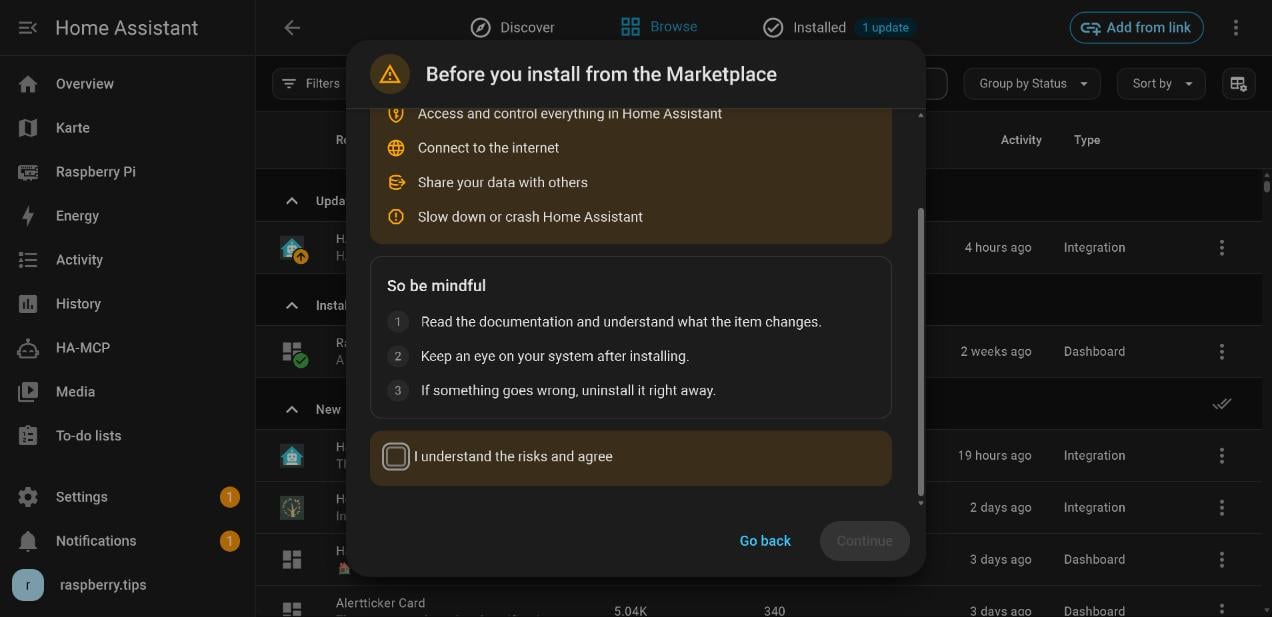
Go to Settings → Marketplace. It isn’t in the sidebar. The first time you open it, you’ll see a risk notice. You can browse straight away, but to install or update anything you need to tick I understand the risks and agree and select Continue.
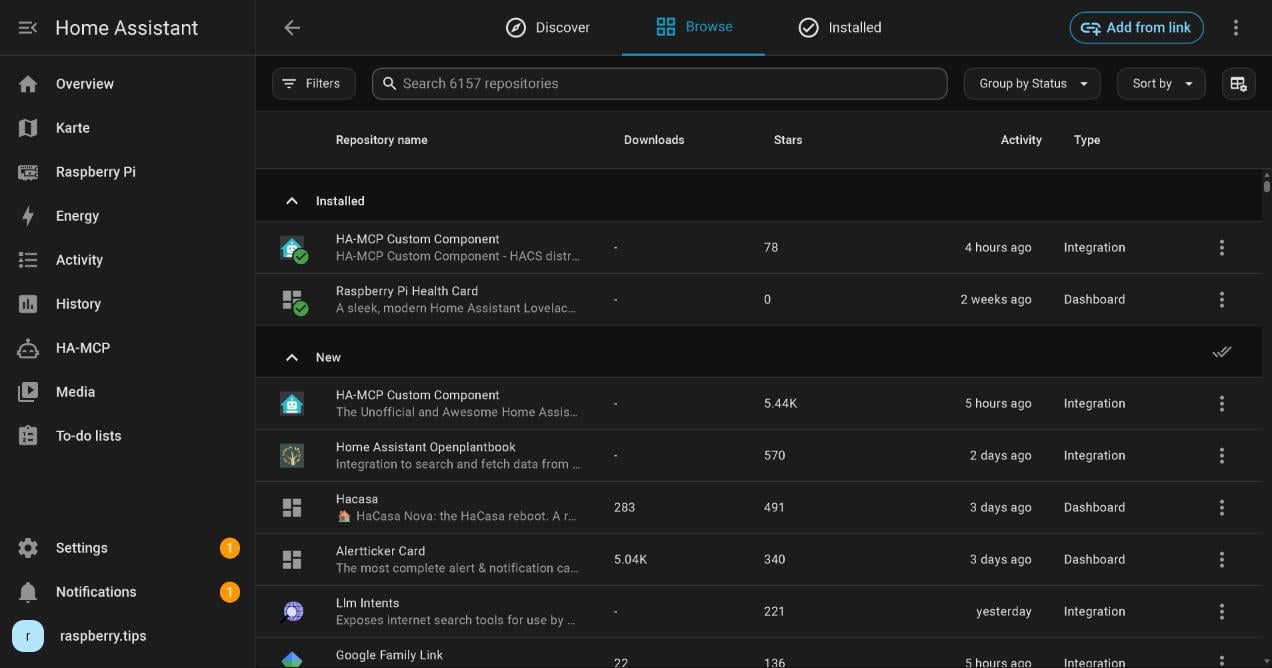
The tabs at the top are Discover, Browse and Installed. Under Browse, you can search, filter and sort a catalog of several thousand projects.
Install your first extension
The Marketplace sorts content by type, and each type behaves a little differently:
| Type | Examples | Installed to | Afterwards |
|---|---|---|---|
| Integration | Better Thermostat, Huawei Solar, Watchman | /config/custom_components/ | Setup starts right away, some need a restart |
| Dashboard | Mushroom, mini-graph-card, Bubble Card | /config/www/community/ | Reload your browser |
| Theme | iOS Themes, macOS Theme | /config/themes/ | Available in your user profile straight away |
| Template | Jinja macros | /config/custom_templates/ | Ready to use |
Example: the Mushroom dashboard cards
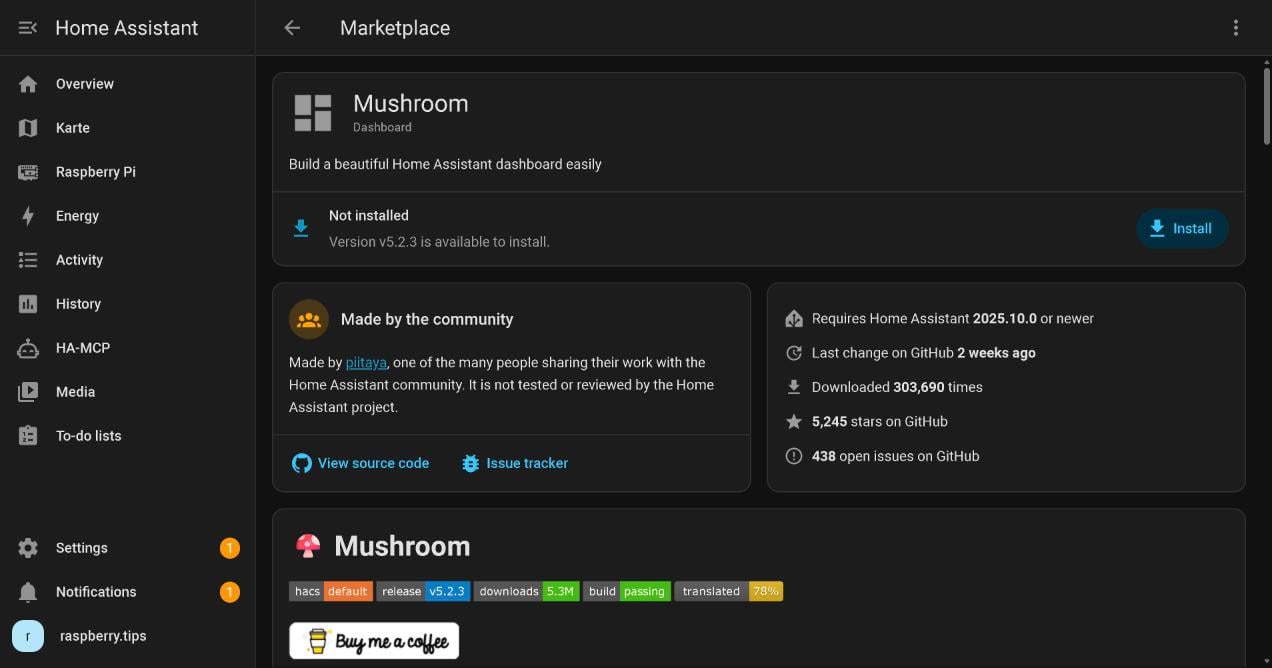
- Search for Mushroom under Browse and open its page.
- Check the details: author, required Home Assistant version, last change and open issues.
- Select Install, then Install again in the dialog.
- When asked to reload your browser, confirm it. The Mushroom cards now show up under Add card in the dashboard editor.
The Marketplace adds the dashboard resource for you. If you manage resources in YAML, add it by hand: the install dialog shows you what to enter.
Example: an integration
Integrations install the same way. When we tried it with Watchman, setup opened straight away without a restart. Some integrations only load after a restart, for example if they use YAML. In that case, a repair lets you restart right from there. If you close setup, you can finish it under Settings → Devices & services. Better Thermostat installs the same way, and our Homematic heating guide shows what you can do with it.
Add a project from outside the catalog
Not every project is in the catalog, but you can add it as a custom repository from GitHub. It must be public, include a hacs.json file and use the right folder structure. You can’t install apps this way, meaning standalone programs like Mosquitto.
- In the Marketplace, select Add from link in the top right.
- Enter the address, either
https://github.com/owner/repositoryor justowner/repository, and select Add. - If GitHub isn’t connected yet, Home Assistant shows a code and a link. Enter the code on GitHub and approve the connection.
- Open the repository in the list and install it as usual.
Your GitHub password never goes into Home Assistant, and the connection only reads public information. If you connected GitHub in HACS, that connection carries over. You can revoke it on GitHub under Settings → Applications → Authorized OAuth Apps.
Keeping everything up to date
The Marketplace checks the catalog every six hours and creates an update entity for each extension. New versions appear at the top of Settings, alongside Home Assistant’s own updates. Open the entry there, read the release notes and install the update. Custom repositories are checked every 48 hours, which requires the GitHub connection. After you update an integration, a repair asks you to restart.
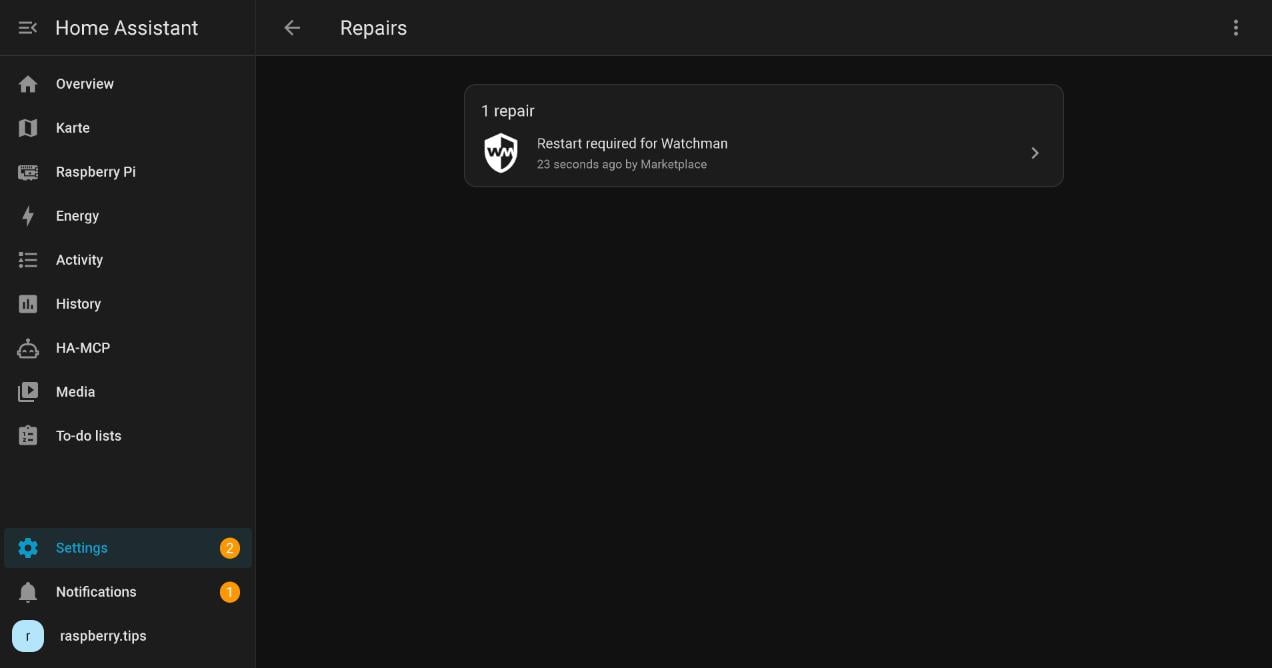
Big version jumps sometimes change entities or settings, so make a backup before updating an integration. If the new version causes trouble, restore it. After a major Home Assistant update, check that your extensions still load. According to the documentation, Install another version isn’t meant for going back.
Security: what you should know
The Marketplace is built in, but its content isn’t. Everything comes from the community and isn’t tested, reviewed or supported by the Home Assistant project. An integration runs inside Home Assistant, so it can read and control all your entities, access the file system and connect to the internet.
A few rules of thumb help when choosing:
- If there’s an official integration for your device, use that.
- The project page shows downloads, stars and the last change. A project with no activity for over a year is a maintenance risk, and so are unanswered bug reports.
- Only install what you use. Every extension is one more thing that has to keep working after Home Assistant updates.
If a repository is marked as critical in the catalog because it can cause harm, the Marketplace uninstalls it immediately and restarts Home Assistant. A repair then explains why.
Troubleshooting
| Problem | Cause | Fix |
|---|---|---|
| Marketplace is missing from Settings | Home Assistant is older than 2026.11, or you’re not an administrator | Check your version and log in as an administrator |
| “The Marketplace is not available” | Recovery mode or a startup error | Check the logs under Settings → System |
| GitHub limit message | Without a connection, you share the hourly limit with everything on your internet connection | Wait, or connect GitHub |
| Card shows “Custom element doesn’t exist” | The resource is missing or your browser has old files | Clear your browser cache and check Dashboards → Resources |
| Theme doesn’t appear | The themes entry is missing from configuration.yaml | Add themes: !include_dir_merge_named themes under frontend: |
| Integration stops loading after an update | The extension isn’t compatible | Look for a new version in the Marketplace, otherwise restore a backup and check with the developer |
For anything else, check Settings → System → Logs. To report a problem with an extension, use the Issue tracker link on its page.
Remove extensions or turn off the Marketplace
Open the extension’s page and select Uninstall from the three-dots menu. For an integration that’s set up, Delete and uninstall also removes its devices and entities, and you can’t undo that. Removing an integration only finishes after a restart.
You can’t uninstall the Marketplace itself, but you can disable it: go to Settings → Devices & services → Marketplace and use the three-dots menu. Installed content keeps working but stops getting updates.
Installing HACS the classic way (up to Home Assistant 2026.10)
Only use this if you can’t update to 2026.11. The steps use the current names: on older versions, apps are still called add-ons and the app store is the Add-on Store. HACS won’t get new releases, and from 2026.11 you can’t install it separately. You’ll need a free GitHub account and Home Assistant 2024.4.1 or newer.
- Go to Settings → Apps → Install app, open Repositories from the three-dots menu in the top right and add
https://github.com/hacs/addons. - Search for HACS in the app store, install the Get HACS app and start it. It only runs for a few seconds, and the log ends with “Installation complete.”
- Restart Home Assistant from the three-dots menu under Settings. A quick reload isn’t enough.
- Reload the page with Ctrl + F5, select Add integration under Settings → Devices & services and choose HACS. Tick all four boxes.
- Enter the code shown at github.com/login/device and select Authorize hacs. HACS then appears in the sidebar.
Without the Supervisor, on Home Assistant Container or Core, there are no apps. The official download script replaces the first two steps:
docker exec -it homeassistant bash
wget -O - https://get.hacs.xyz | bash -
On Home Assistant Core, run the second line as the Home Assistant user. Then carry on with the restart.
HACS and Marketplace FAQ
Not from Home Assistant 2026.11. HACS is built in as the Marketplace under Settings → Marketplace, and the separate installer stops at this version.
Yes. According to the release notes, everything in the Marketplace is free, and that won’t change.
Not for anything in the catalog. You only need one for custom repositories or a higher request limit.
Yes. It works on every installation type, including Green, Yellow, the Raspberry Pi, mini PCs and Home Assistant Container.
Home Assistant moves it over automatically. Installed extensions, custom repositories and update entities stay in place. AppDaemon apps and Python scripts keep working but no longer get updates.
Usually not. Cards only need a browser reload, and many integrations go straight into setup. Integration updates do need a restart.
Apps (formerly add-ons) are standalone programs that run as containers alongside Home Assistant, such as Mosquitto or ESPHome. The Marketplace installs extensions that run inside Home Assistant: integrations, dashboard cards, themes and templates.
Wrapping up
Home Assistant 2026.11 does away with installing HACS: open Settings, accept the notice and pick an extension. It’s still third-party code, though, so stick to a few well-maintained extensions rather than lots of abandoned ones. Mushroom for your dashboard and our Health Card for the Raspberry Pi are two good places to start, and you’ll find both by searching the Marketplace. Happy browsing!